

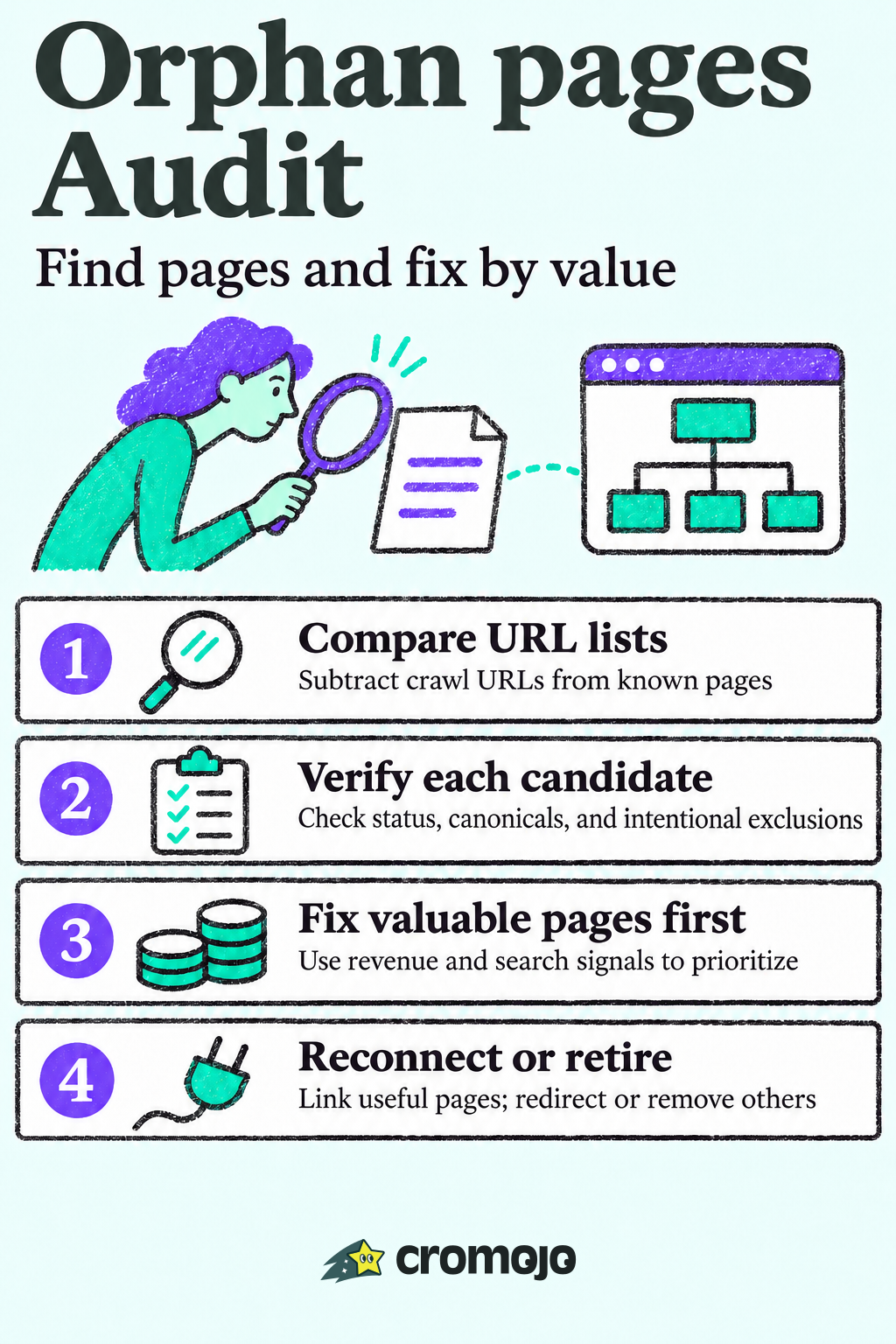
An orphan pages audit compares every URL your site is known to have against the URLs a crawler can reach by following internal links. Whatever appears in the first list and not in the second is an orphan candidate. The part that decides whether the audit pays off is what comes next: ranking those pages by the revenue they earn or could earn, so you fix a product page that sells before a forgotten tag archive. Cromojo's revenue analytics attributes revenue by page, keyword and channel, which is the data that ranking step needs.
What an orphan page is, and why it costs you money
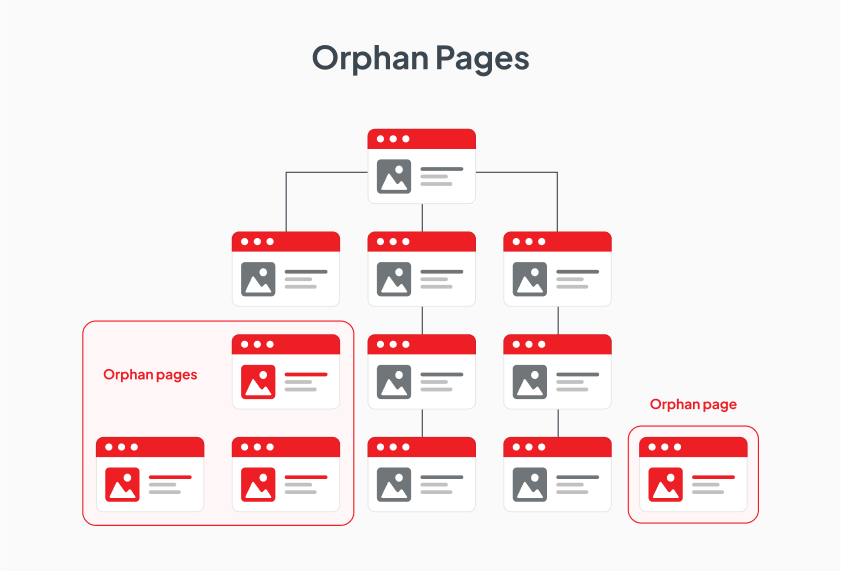
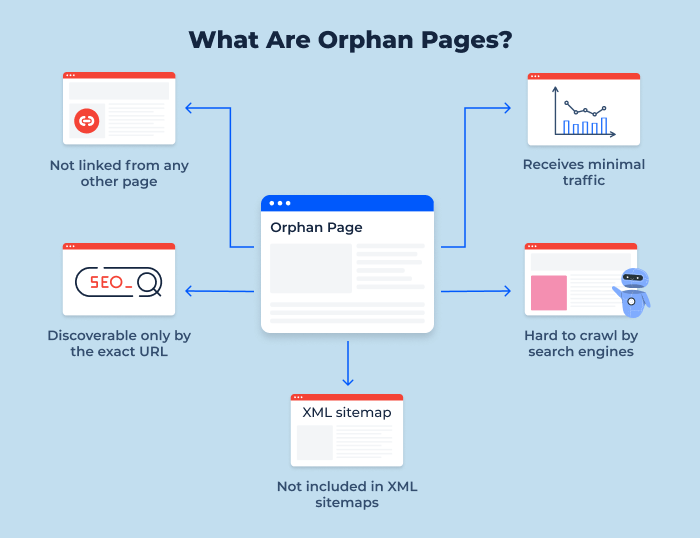
Search Engine Land defines orphan pages as pages with no internal links pointing to them from anywhere on the site, including the homepage, category pages and navigation. A page linked only from other orphans counts as an orphan too, because it is cut off from the rest of the structure.
The same guide notes that such pages can still be found through external links or a typed URL, but they may rank poorly, draw less organic traffic and be hard for shoppers to find. For a large store it also wastes crawl budget, meaning the number of pages a search engine bothers to crawl on your site.
Google itself says it uses links to discover new pages and as a signal of relevance. A page with no links pointing to it gets neither benefit from your own site.
For an ecommerce owner the practical cost is simple. A product page that nobody can click to will rarely sell through search, and if you pay to send traffic to it, you are buying visits to a page your own store does not support.
Orphaned, underlinked, deep: three different problems
Audits often lump these together, and they need different fixes:
- Orphaned: no crawlable internal link at all. Fix: add a link from a relevant hub, such as a category page.
- Underlinked: linked only from weak, irrelevant or templated spots. Fix: add contextual links where shoppers would look for it.
- Deep: reachable, but only after many clicks. Fix: shorten the path with better category structure.
- Interaction-dependent: the link appears only after a search, filter or "Load more" click. Fix: crawlable pagination or plain links.
A product that is merely hard to reach is not an orphan. Keep that distinction, or your list will fill with pages that need a different repair.
How to run an orphan pages audit, step by step
The logic is a subtraction: all the URLs you know about, minus the URLs a crawler reaches through links. Here is the routine.
1. Crawl the site from the homepage
Use any crawler that starts at your homepage and follows links only. For each URL record the status code, whether it is indexable, its canonical target, its number of internal inlinks and its click depth. Before you compare anything, normalize the URLs: protocol (http or https), trailing slashes, tracking parameters and redirects. Skip this and you will see thousands of false orphans that are the same page written two ways.
If your site relies on JavaScript to render menus or product grids, check the rendered output too. A link that exists in the code but sits behind a broken handler or a collapsed element is not a usable path.
2. Collect every URL you know exists
A true orphan is, by definition, absent from the crawl, so you need other lists to catch it:
- Your catalog or CMS export. For a store, the full product and collection list from the platform. This is the most reliable inventory.
- XML sitemaps. Google describes a sitemap as a file that tells search engines which URLs you consider important. Being in a sitemap helps discovery but does not give shoppers a path to the page.
- Search Console. Export pages that earned impressions or clicks. Search Console keeps 16 months of performance data, which is long enough to catch seasonal products.
- Analytics landing pages. Export pages that received visits recently, including paid and email landing pages.
- Server logs, if you have them. Pages Googlebot requests that your crawl never found are strong candidates.
- Backlink and migration lists. Old URLs that other sites still link to.
The BBQ Growth Lab write-up on orphan detection frames the same idea as a difference calculation: the union of known URLs minus the set the crawl can reach.
For a printable version of the verification steps, this website audit checklist is a handy companion while you work through a site.
3. Subtract and verify
Remove every crawled URL from the combined list. What remains are candidates, not confirmed orphans. For each one, confirm:
- It returns a 200 status (not a redirect or error).
- It is indexable and its canonical points to itself.
- No internal link to it exists once the URL is normalized.
- It is not a deliberate page, such as a thank-you page, a private page or a campaign landing page that you want unlinked.
Then sort the survivors by impressions, backlinks and revenue.
Which orphan pages to fix first
This is where most audits stall: a spreadsheet of 800 URLs and no order. Rank them by what the page is worth.
A workable order for an online store:
- Valuable pages with zero internal links: products that sell, core categories, conversion pages.
- Canonical sitemap URLs your crawl cannot reach: usually a template, pagination or navigation gap.
- Important pages with a single weak route.
- Broken, redirected or non-canonical internal links: fix the route before adding more links.
- Low-value legacy and parameter URLs: consolidate, control or remove.
That sequence follows the ScanMySEO prioritization order, and its author also warns against dumping every orphan into the header or footer just to improve a crawler score. A sitewide link does not tell a search engine, or a shopper, how the page relates to anything.
Shopify's ecommerce SEO audit checklist gives a practical way to rank: pair Search Console data (clicks, impressions, click-through rate, average position) with sales data for the same landing pages, and put the pages that earn meaningful revenue but are losing search visibility at the top. It also advises recording a baseline before you change anything, and notes that Search Console clicks and store sessions are measured differently, so judge the direction of change rather than expecting the numbers to match.
A worked example
Say a store has 1,200 product URLs and the crawl reaches 1,050. The catalog export, sitemap and analytics add up to 150 candidates. After verification, 110 are live, indexable products. Of those, 14 earned revenue in the last 90 days, 30 have search impressions but no sales, and the rest show nothing.
Your work order: reconnect the 14 revenue pages first, by linking them from their parent collection and from related products. Next, the 30 with impressions. The last 66 get a decision: link, redirect to a close successor, or retire. The 40 that failed verification (redirects, noindexed pages, intentional pages) need no action.
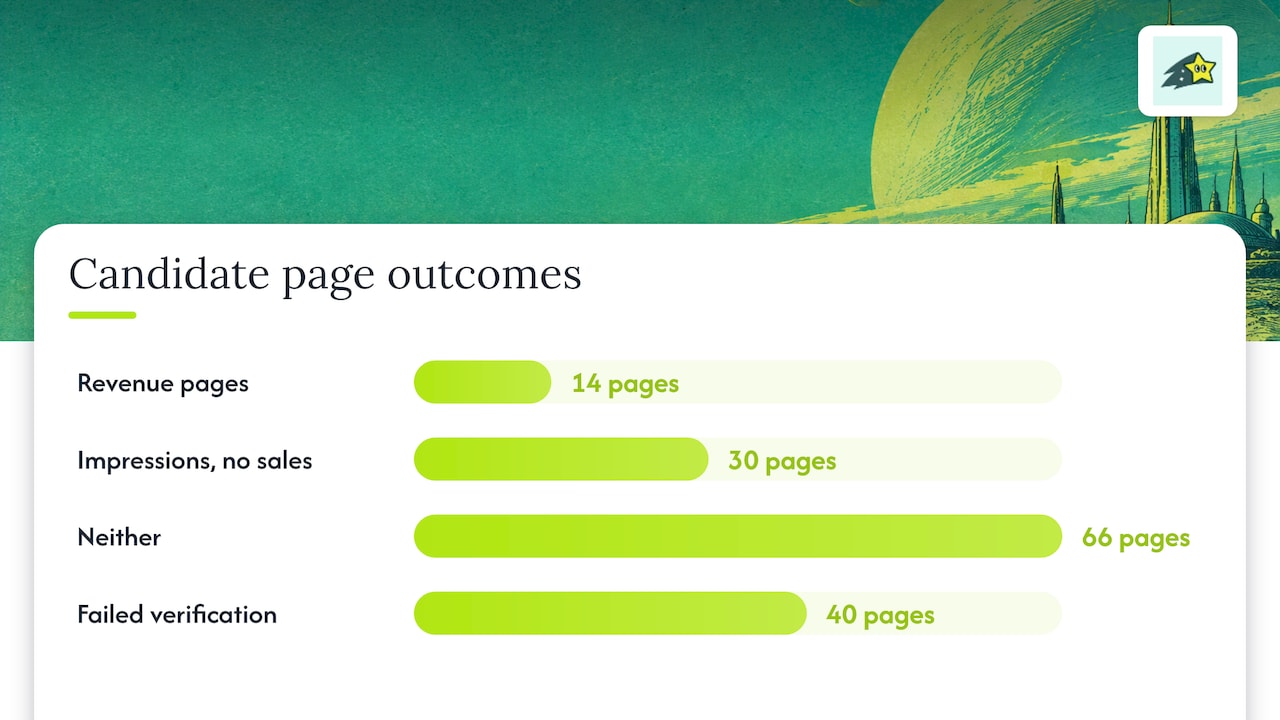
Without revenue by page, the first two groups look identical to the third. With it, you can see where the money is sitting.
What to do with each orphan
The repair depends on what the page is:
The product rules come from Ecom Design Pro's orphan product guide, and the redirect and canonical logic from the Sitebulb-style framework above. One rule beats them all: never hide a weak page behind more links. If a page is inaccurate or pointless, the answer is governance, not navigation.
When you add links, write them as plain HTML links with descriptive anchor text, which is what Google's link guidance asks for. For stores with thousands of URLs, this ecommerce internal linking playbook covers how to scale the linking work across categories.
Keyword cannibalization: the sibling problem in ecommerce
While you reconnect orphans, you will find a second issue. Reconnecting a page that targets the same query as an existing page can create keyword cannibalization: two of your URLs competing for one search. Ecommerce is prone to it because a product, a collection and a filtered view can all match one commercial query.
How to analyze it
Shopify's checklist describes a simple Search Console method. Open Performance, filter by a target query, then look at the Pages tab. If several URLs show impressions for the same query, that is a reason to investigate, not proof of a problem. Look for the same intent, unstable rankings and split clicks.
To confirm, RankSages' cannibalization audit suggests comparing the two URLs day by day. If one has impressions on days the other has none, and the lines swap back and forth, Google is alternating between them. If both show on the same days, Google is showing both at once, which may be fine.
Common causes in stores include collections built with "match any" conditions, near-identical collections defined by tags, supplier descriptions pasted in unchanged, and filter URLs such as a ?type=running variant that stays indexable alongside the main category.
How to fix it
- Pick the primary page by intent first, then weigh backlinks, conversions and URL cleanliness.
- If the other page has no separate purpose, merge it and 301 redirect.
- If both deserve to exist, rewrite them so each owns a different need and link between them.
- Use canonicals for duplicates that must stay live, such as filtered views.
Prevention is keyword mapping: one primary page per query, matched to intent, with a collection for the broad term, a product page for the specific item and a guide for the how-to question.
Keep orphans from coming back
Orphans reappear for predictable reasons: migrations, redesigned menus, template changes, products added in bulk, and campaigns that retire a landing page. Rerun the audit after each of those, and compare crawl depth and inlink counts before and after. Fixing a template cause once is worth more than patching pages one by one.
Also check that fixed pages actually get picked up. If a reconnected page stays out of Google's results, our guide on why pages aren't indexed walks through the usual causes.
Where Cromojo fits
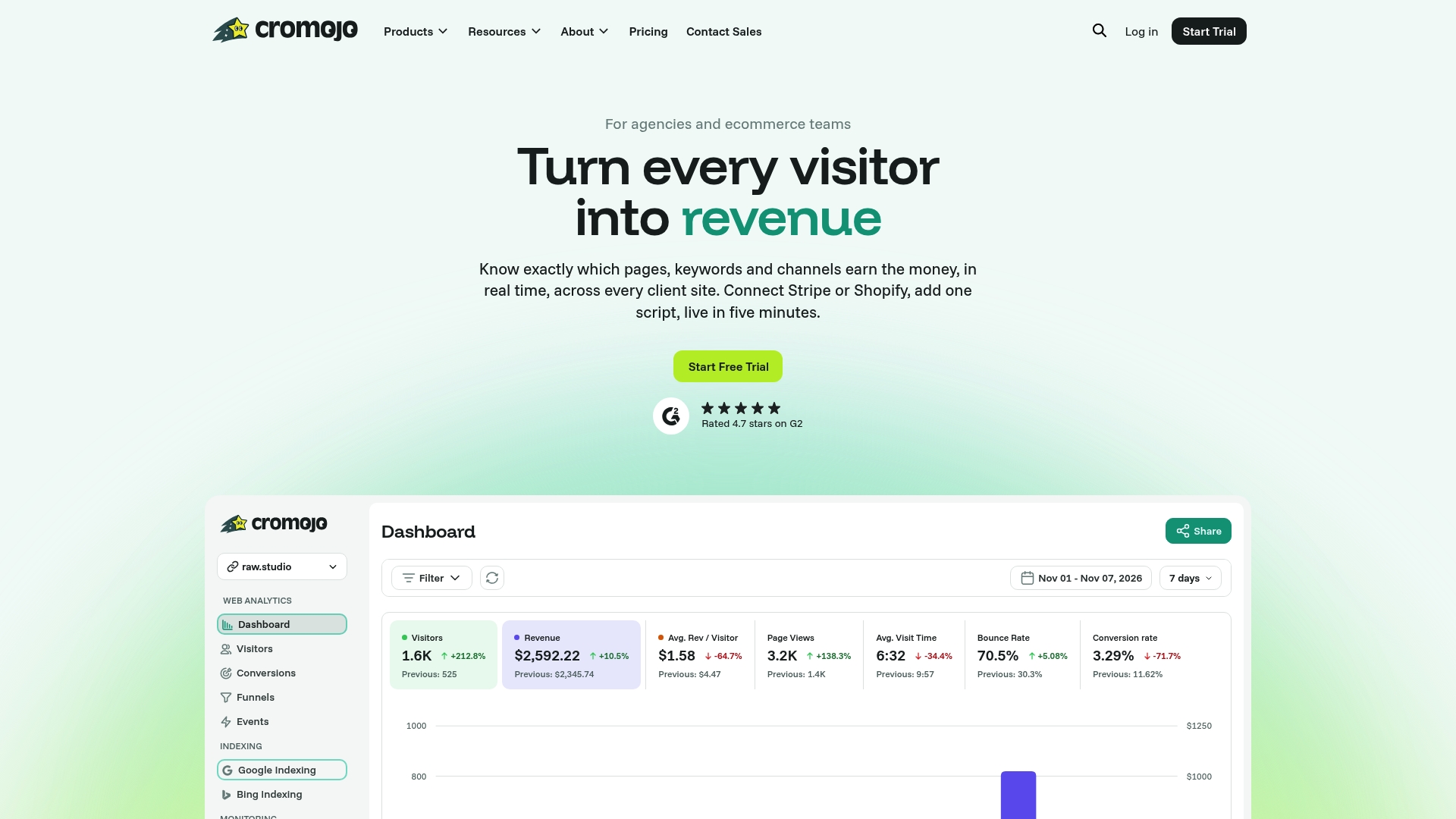
After you reconnect pages, two things matter: that search engines notice the change, and that you can see whether revenue followed. Cromojo's automated indexing submits and re-submits URLs to Google, Bing, Yandex, Baidu and AI search, with bulk URL submissions and instant indexing notifications. It connects with Google Search Console, so you can send a batch of repaired URLs at once.
Your SEO revenue view and revenue by page, with Stripe and Shopify integrations, show which of those pages earn money, which is the ranking signal this whole audit depends on. Tracking is cookieless and privacy-first, and website monitoring covers downtime, errors and SEO health.
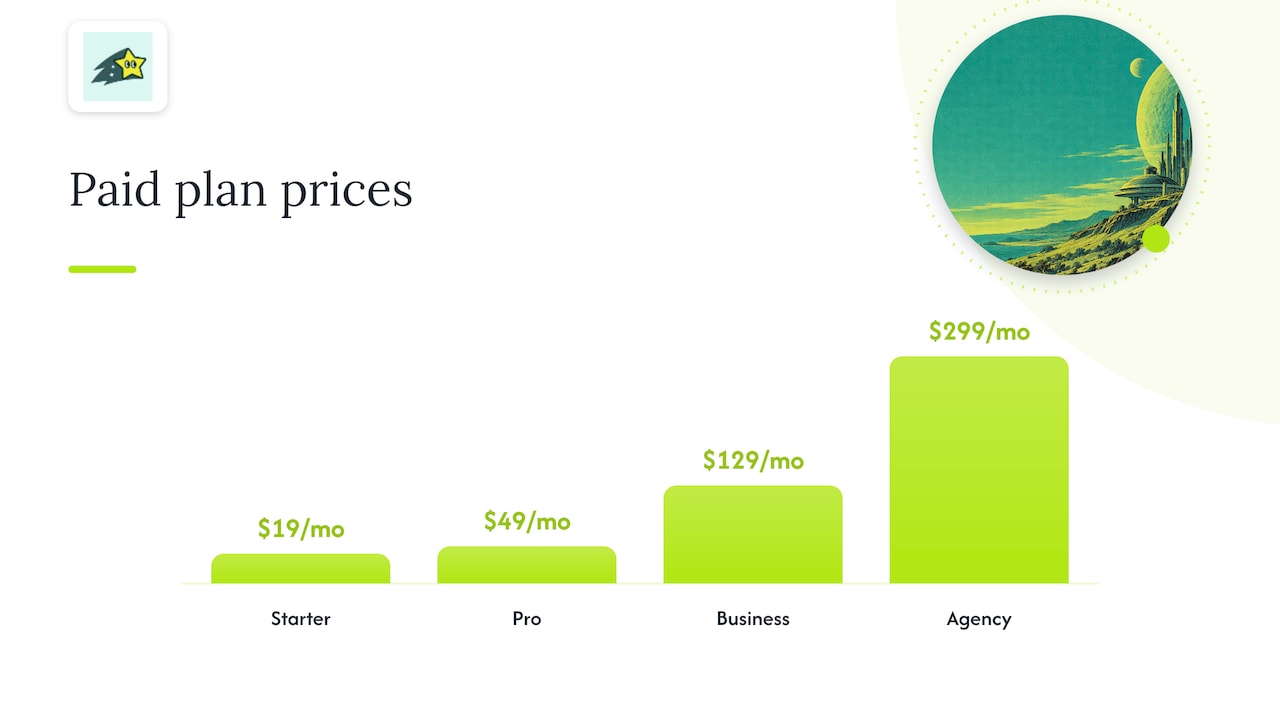
Plans run from Starter at $19 per month, Pro at $49, Business at $129 and Agency at $299 per month, billed by pageviews and tracked sites, and there is a Free Plan too. See the pricing page for details.
If you manage several client stores and want the audit done for you as part of a broader program, our Conversion Optimization Services start from $3800 per month.
Our perspective
Most orphan page audits end as a spreadsheet nobody acts on, because every URL looks equally urgent. We think the missing column is revenue. A page that earned money last quarter and has no internal link is an emergency; a page that never got a visit is a housekeeping task.
That is why we built Cromojo around revenue attribution by page, keyword and channel, rather than traffic counts alone. When you can see what each URL earns, the audit order writes itself, and the fixes you make can be judged against sales instead of guesses.
Indexing belongs in the same loop. Repairing a link structure only matters once search engines return to the page, so we pair revenue data with automated indexing and bulk URL submission. One platform, less manual juggling between exports.
Sources
- What are orphan pages? (Search Engine Land)
- Link best practices for Google
- Build and submit a sitemap (Google Search Central)
- How to Find Orphan Pages and Repair Internal Links (BBQ Growth Lab)
- Master Your Site Structure & Orphan Pages (ScanMySEO)
- Ecommerce SEO Audit: Shopify Checklist
- Orphan Product Pages: Ecommerce SEO Audit Guide (Ecom Design Pro)
- Keyword cannibalization audit in Google Search Console (RankSages)