

Cross-domain tracking keeps one visitor recognized as one visitor when they move between two different domains, for example from your store at shop.com to a hosted checkout at pay-provider.com. Without it, the visit splits in two, your own domains show up as traffic sources, and the sale gets credited to the wrong place. The fix is to pass the visitor's identity from the first domain to the second, then test that it survives every click. If your goal is revenue by channel and keyword rather than session counts, Cromojo's revenue analytics is built around exactly that question, and its multi-domain guide shows how extra domains are added.
What cross-domain tracking actually does
Analytics tools recognize a returning visitor with a first-party cookie, a small file stored by the browser for one domain. A cookie set by yourstore.com cannot be read by checkout-provider.com. When a shopper crosses over, the second domain sees a stranger.
Cross-domain tracking solves this by attaching the visitor's identifier to the link they click. Google describes this as a linker mechanism: the tag adds parameters to links between your domains so the destination can recognize the same user and continue the session. In GA4 the parameter is _gl. It carries a client ID and a timestamp, so the receiving domain can treat the visitor as the same person.
What happens when it is missing is easy to spot in reports:
- Session counts rise, because one journey is counted as two.
- Conversion rates fall, because the session that converts is not the one that began with your ad or search click.
- Your own domains appear among your top referral sources.
- The purchase is credited to "direct" or to the checkout domain instead of the campaign that earned it.
That last point is the expensive one. If you judge campaigns on revenue, a broken handoff makes your best channels look weak.
Do you need it? Subdomains versus separate domains
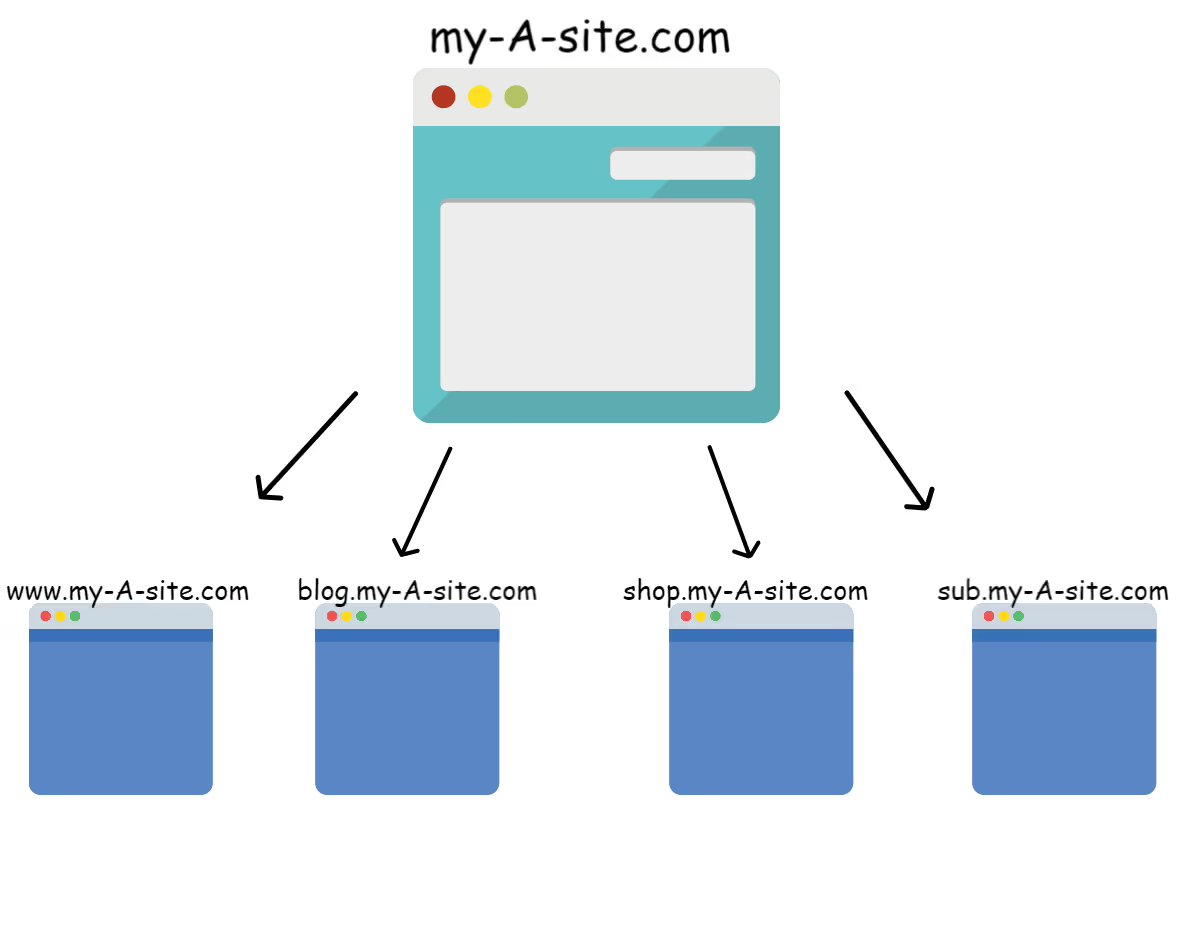
Many setups that look like cross-domain problems are not. Google's GA4 configuration reference explains that with the automatic cookie setting, both example.com and subdomain.example.com use example.com as the cookie domain. In plain terms, subdomains of the same root domain share the cookie, so you normally need no cross-domain setup between them.
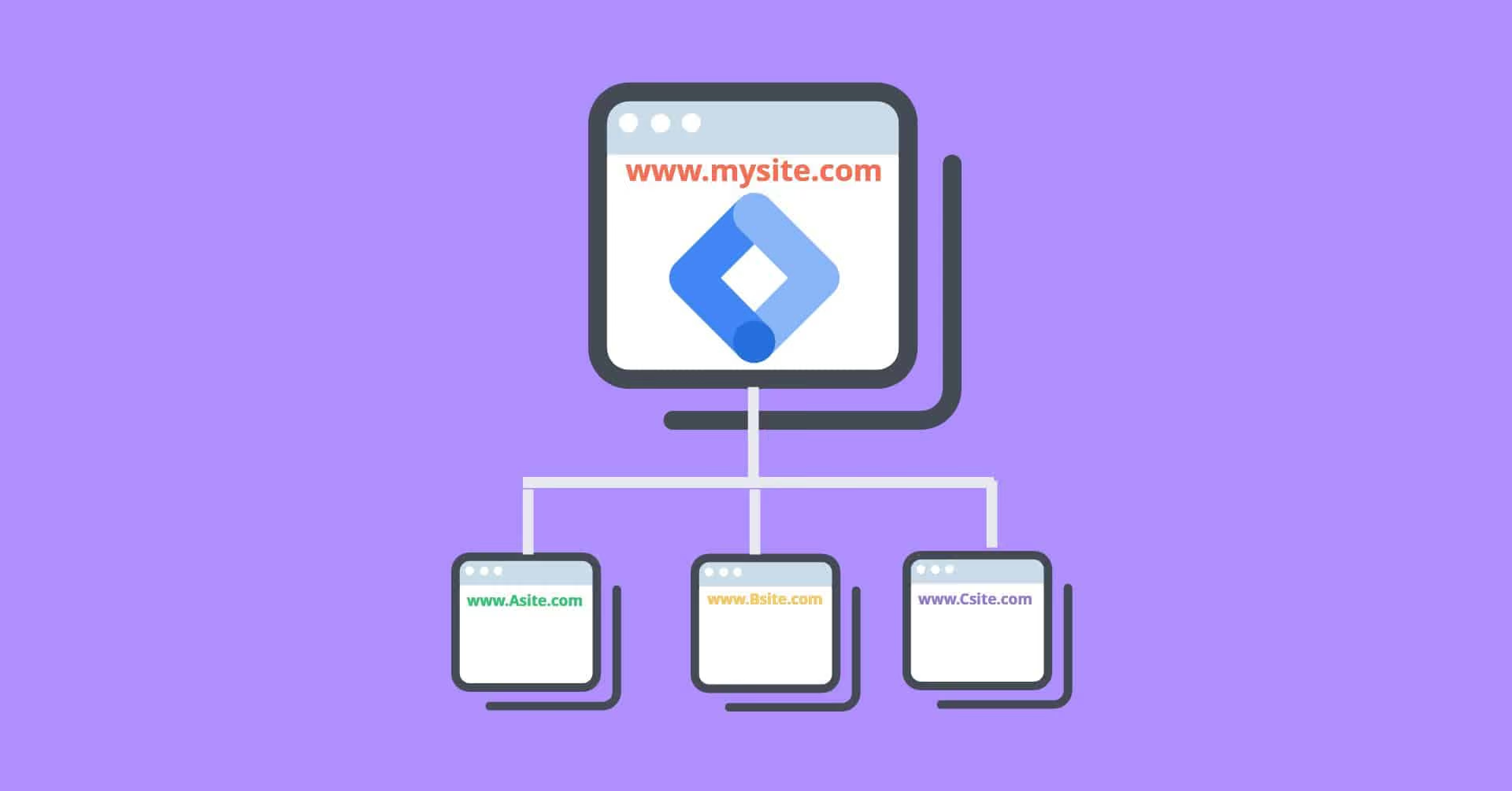
You do need cross-domain tracking when a visitor moves between different root domains that you control:
If a subdomain still looks broken, the cause is often elsewhere. Metricfixer's diagnostic guide notes that subdomain issues are frequently misread as cross-domain problems when the real cause is custom cookie settings, conflicting tag containers or consent differences.
Cross-domain tracking for ecommerce
Ecommerce is where this matters most, because the handoff often sits right before the sale. Common patterns:
- A store on one domain and a hosted checkout or payment page on another.
- A brand with separate country domains and one shared cart.
- A marketing site on one domain and the shop on another.
- An agency running landing pages on a builder's domain that send traffic to the client's store.
In each, the visitor arrives from a campaign, browses, and pays on a different domain. For the sale to be credited to that campaign, the identity has to travel with them. For revenue reporting, you also want the transaction to carry a unique ID so the same order is not counted twice and can be matched to your backend or payment records.
This is also where a revenue-first tool helps. Cromojo connects to Stripe and Shopify and reports revenue by keyword, page and channel, so the question you ask is "which source produced this payment?" instead of "how many sessions did each domain log?". You can see the integrations and tiers on the pricing page.
How to set up cross-domain tracking in GA4
The steps below follow Google's own approach. Check the official setup guide for the current interface, since menus change.
1. Use one tag setup across every domain
Both domains must send data to the same web data stream, so the visitor stays in one property. Metricfixer's guide lists this as a requirement: the same web data stream on both domains. Install the same tag, or the same container, on each site.
Where it goes wrong: a second property or a separate stream on the checkout domain. The visitor is then split no matter what you configure.
2. List your domains in the tag settings
In the GA4 admin, open the web stream, then the tag settings, then the option to configure your domains. Funnelfreaks' audit checklist gives the path as Admin, Data Collection and Modification, Data Streams, Web stream details, Configure Tag Settings, Configure your domains. Add every domain the visitor can move between, including the checkout.
Where it goes wrong: listing only the main domain, or adding a domain with a typo. Matching is by the domain text, so check it carefully.
3. Confirm the link decoration
Once live, click from domain A to domain B in a clean browser window. The destination URL should now include the _gl parameter. Funnelfreaks advises verifying this, because without it sessions break and user counts inflate.
Where it goes wrong: the parameter is added only to ordinary links. Forms, buttons that run JavaScript and redirects can drop it.
4. Test every navigation route
Metricfixer recommends testing ordinary links, forms, JavaScript redirects, locale redirects and checkout buttons separately, then comparing the client and session identifiers on the destination domain. If they changed, adding the domain to the list will not repair a linker stripped by an intermediate redirect, or by a tag that fires after the URL was cleaned.
Where it goes wrong: you test one link and assume all are fine. The checkout button is usually the one built differently.
5. Run a full purchase test
Walk the whole funnel: view item, add to cart, begin checkout, purchase. One checklist suggests also confirming that the transaction ID is unique and that revenue matches backend data within a 5% tolerance. Treat that tolerance as a practical benchmark, not a rule. What you want is a purchase that shows one session, the original source and the right revenue.

6. Watch for the time limit in server-side setups
If you use server-side tagging, there is a catch. Stape's guide explains that with server-side GA the FPLC cookie lasts 20 hours, so the handoff only works if the visitor clicks through to the destination within that time, and both sites must use server-side tracking. That is one reason some teams look for simpler tracking methods.
Troubleshooting: where cross-domain tracking breaks
When numbers look wrong, work through causes in order instead of guessing. Metricfixer's suggested order is a good template: confirm which attribution scope you are looking at, trace one conversion by transaction ID, client ID and session ID, check that a session start exists, check that click IDs and UTM tags survived every redirect, check whether a domain, hosted checkout or payment gateway changed the visitor's identity, and only then look at consent settings. The full sequence is in their guide.
The most common culprits:
- Redirects that strip parameters. A redirect from
httptohttps, from a short link, or by country can discard_gland your UTM tags. - Payment gateways that return the visitor. The return trip also crosses domains. If the return URL lacks the identifier, the purchase is logged as a new visit.
- Self-referrals. Your own checkout domain appears as a referral source, which usually means the handoff failed. When you review your channel report, it is the same place where you might also check LLM traffic in GA4, so it is worth a regular look.
- Consent differences. If one domain asks for consent and the other does not, identities may not match.
- Two tag containers. Conflicting containers can overwrite each other's settings.
A quick health check is the ratio of sessions to users. Funnelfreaks notes that for ecommerce it typically falls between 1.2 and 2.0, so a number far outside that range is worth investigating.
Cross-domain setup is not retroactive. Data collected before the configuration stays split, so write down the date you made the change and annotate your reports.
TikTok conversion tracking and the attribution window
Marketers searching for cross-domain tracking often have TikTok campaigns in mind, because those campaigns send traffic to a store that then sends it on to a checkout. Two systems then report the same sale, and they disagree.
For website campaigns, TikTok counts conversions reported by its Pixel or Events API. Its attribution window is the time between an ad interaction and a conversion. The defaults are 7-day click-through and 1-day view-through: a purchase is credited if it happens within seven days of a click, or within 24 hours of a view without a click. Outside both windows, Ads Manager gives no credit. The window measures credit, not cause.
Here is a worked example. A shopper watches your TikTok ad on Monday and does not click. On Wednesday she searches your brand name, clicks a result, and buys through a checkout on a second domain.
- TikTok: the view was more than 24 hours before the purchase, so the sale is not credited to TikTok.
- Your analytics: the visit is a brand search click, so the sale goes to organic search, provided the cross-domain handoff worked. If it broke, it lands in direct.
- Neither is wrong. They answer different questions.
To compare the two fairly:
- Set the same lookback period when you compare, for example seven days.
- Tag every TikTok ad URL with consistent UTM parameters so your analytics can identify it.
- Compare orders and revenue, not platform-reported conversions alone.
- Expect TikTok to report more than your last-click analytics, because it counts views and you usually do not.
- Fix the cross-domain handoff first. A broken handoff understates every paid channel in your own reports.
Promo: see revenue by source across your domains
If you run a store, a checkout or regional sites, the practical goal is knowing which keyword, page or channel produced the revenue. Cromojo is a revenue and web analytics platform with real-time attribution by keyword, page and channel, conversion funnels, visitor journey analysis, and Stripe and Shopify integrations. Tracking is cookieless and privacy-first, and the Starter plan is $19 per month, with Pro at $49 per month, Business at $129 per month and Agency at $299 per month. There is also a free plan.

For extra domains, Cromojo's multi-domain guide explains that your main domain and all its subdomains are included automatically. If the same snippet runs on another domain, such as a separate checkout domain, a regional site or a landing-page builder, you add it under Settings, Analytics, Inclusions, Domains, and its visits are counted from then on. Visits sent before you add it are not recovered, so add the domain before you launch campaigns. Agencies can use the Agency plan to manage several client sites in one place, and the Funnels and User Journeys features show where visitors drop off.
Our view: measure revenue, not just sessions
Most cross-domain guides treat the job as a tag problem: add the domain to a list, check for a parameter, move on. That is necessary, but the real question behind it is simpler. Which marketing effort made money?
We built Cromojo around that question. It is a revenue-first analytics platform, with attribution down to the keyword, direct Stripe and Shopify integration, and cookieless tracking that needs minimal setup on any tech stack. When your reports start from payments instead of page views, a split session is less likely to hide the channel that earned the sale.
Our advice for small teams is to keep the setup small. Fewer domains, one tag setup, and one report you trust beat a patchwork of tools that each tell a different story. Our Smart Insights agents monitor your site continuously and point to specific conversion gaps, so you do not have to dig through reports to find them.
If you manage several client sites, start by listing every domain each one uses, including checkouts and regional sites. That list is your tracking plan.
Why do TikTok and my analytics show different conversions?
TikTok counts view-through conversions and uses its own windows. Your analytics usually credits the last tracked source. Compare orders and revenue over the same period, tag TikTok links with UTMs, and fix any cross-domain handoff gaps first.
Sources
- Set up cross-domain measurement with Google tags
- Google Analytics configuration reference
- Cross-Domain Tracking glossary, DeltaV Digital
- Server-side cross-domain tracking using Cookie reStore tag, Stape
- GA4 audit checklist for ecommerce brands, Funnelfreaks
- GA4 (direct), (not set) and Unassigned Diagnosis, Metricfixer
- GA4 Migration Checklist, Jobsolv
- How does the TikTok attribution window work?, Kolvant
- Track LLM Traffic in Google Analytics 4