
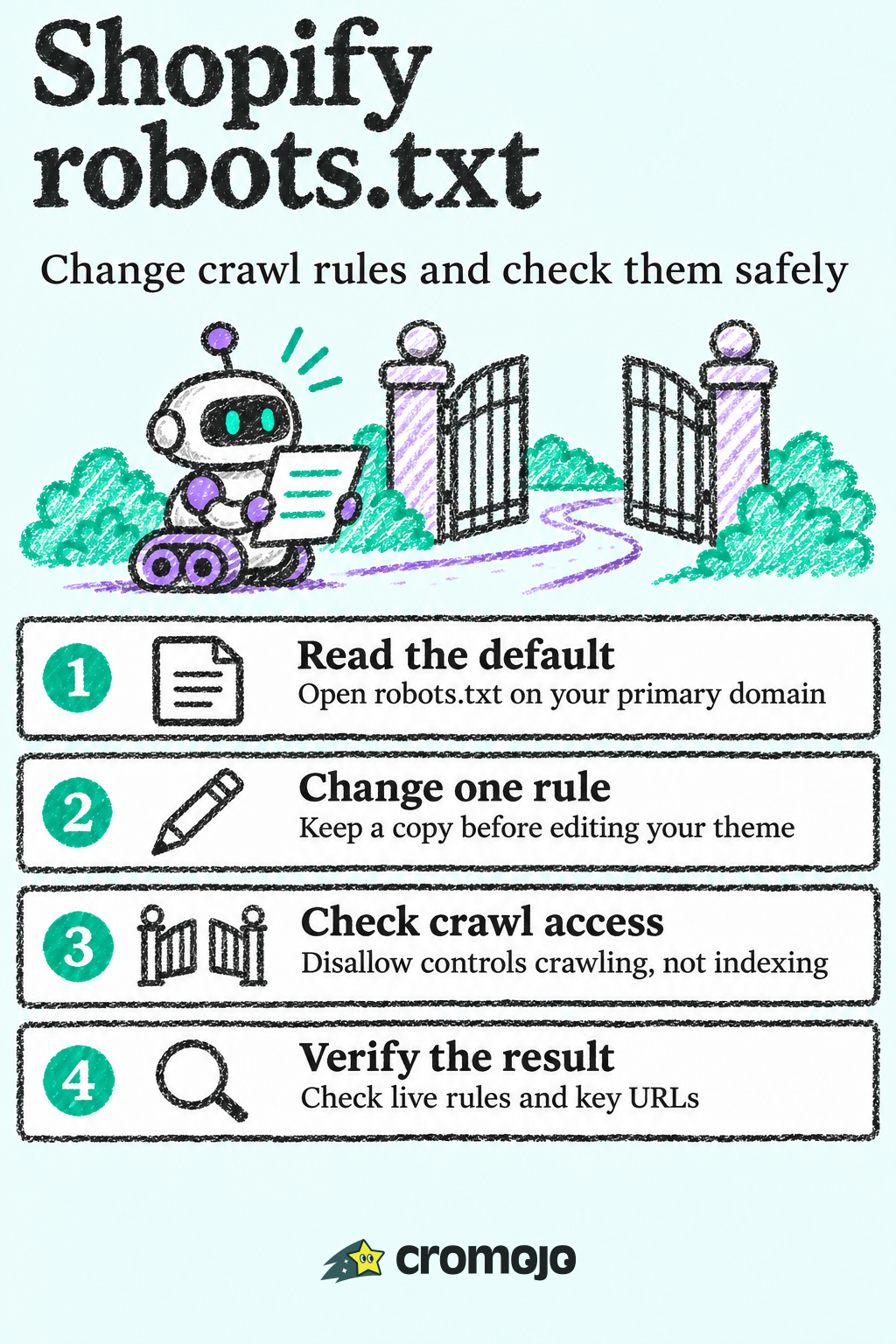
Every Shopify store already serves a robots.txt file, and for most stores the right edit is no edit. If you do need to change it, you do it by adding a robots.txt.liquid template to your published theme, and you should change one rule at a time and check the live file after each save. The bigger risk is rarely the file itself. It is not noticing that a rule is quietly keeping important pages out of search, and so out of your revenue.
This guide shows what the default file does, how to edit it, how to verify the result, and how to keep watching it afterward.
What robots.txt does on a Shopify store
A robots.txt file is a plain text list of rules that search engine crawlers (bots such as Googlebot) read before they request pages from your site. Shopify's Help Center says the file lives at the root of your primary domain and tells crawlers which pages to request.
Two words matter here. Crawling is when a bot examines a page's content and code. Indexing is when a page becomes eligible to appear in search results. Shopify's documentation notes that a search engine can index a page without crawling it, if it discovers the page through other means.
That difference is the source of most confusion. Google's own guide states that robots.txt is used mainly to manage crawler traffic, not to keep pages out of Google. A disallowed URL can still be indexed if other sites link to it.
A few other rules from Google's robots.txt specification are worth knowing before you touch anything:
- The file must sit in the top-level directory of the host, and rules apply only to the host, protocol and port where it is served.
- Paths are case-sensitive.
- Each crawler follows only the group with the most specific matching user agent. Groups are not combined with the generic
*group.
That last point catches people out, and we come back to it below.
What Shopify blocks by default
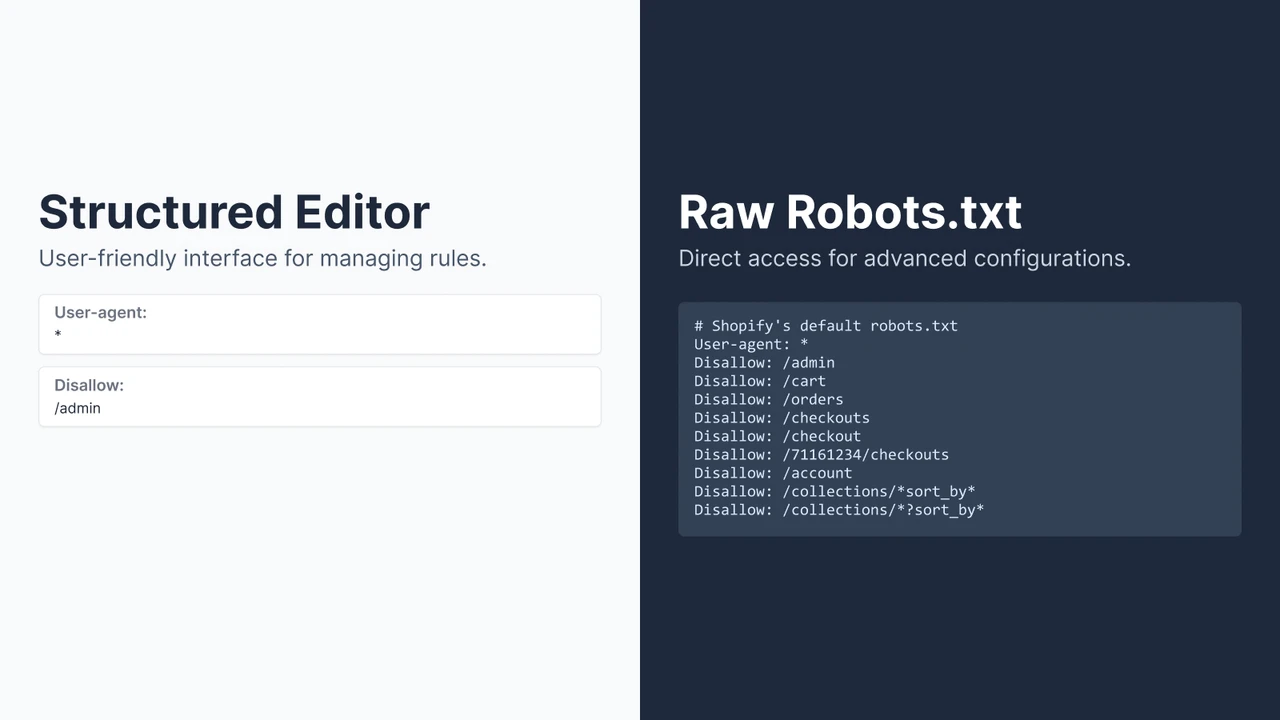
Open yourstore.com/robots.txt in a browser and you will see the default. According to Shopify's robots.txt.liquid documentation, the key defaults are:
Shopify's help page on hiding pages adds that the file blocks content that could dilute SEO by taking PageRank away from pages that matter. In other words, the default is a reasonable setup for an ordinary store. You are rarely fixing something broken.
One more thing you will see: the file points to your sitemap. Confirm that the sitemap line is present and correct whenever you review the file.
Should you edit it at all?
Shopify's position is clear. The default template needs no changes unless you have a specific reason. Editing is an unsupported customization, and Shopify warns that incorrect use can result in losing all traffic and recommends working with a Shopify Partner.
Good reasons to edit include:
- Blocking a crawl-wasting URL pattern, such as parameter-based URLs your store generates.
- Adding a rule for a specific bot.
- Declaring an additional sitemap.
- Removing a rule that an old workaround added and that now blocks something you want crawled.
Poor reasons include hiding one page or product from search. For that, Shopify's guidance is to use a noindex meta tag in theme.liquid or the unlisted product status, and leave robots.txt alone.
Before you edit: a short preparation list
A few minutes of preparation prevents most of the damage. Shopify's developer docs advise that you save a copy of the current /robots.txt output and compare it with the rendered template before publishing. Beyond that:
- Save the current live file. Copy the text of yourstore.com/robots.txt into a document. This is your rollback reference.
- Check whether a custom template already exists. Look under Templates in the theme code for robots.txt.liquid. A previous developer or app may have added one.
- Remove old workarounds. Shopify recommends removing earlier customizations, such as Cloudflare-based ones, before you start.
- Write down which URLs must stay crawlable. Pick your top products, top collections, a blog post and your sitemap.
- Decide who owns the change. One person, one change, one record of what was done and why.
It also helps to know which of your pages earn money before you decide what to protect. Revenue by page and by keyword tells you which URLs a mistake would hurt most. Revenue Analytics in Cromojo attributes revenue by keyword, page and channel, so the list of pages you must not block is based on sales rather than guesswork.

How to edit robots.txt.liquid step by step
The path below follows Shopify's Help Center instructions. Shopify has since moved the old Actions button into a three-dot menu in the Online Store 2.0 interface, as Shout Digital's walkthrough notes, so the label on your screen may differ slightly.
- From your Shopify admin, go to Online Store > Themes.
- Find your published theme, open its menu and choose Edit code.
- Under Templates, choose Add a new template, select robots and create it.
- Customize the template with Liquid and save it in the published theme.
- Open yourstore.com/robots.txt and confirm the output.
Where things go wrong:
- Replacing Liquid with plain text. Adding the template replaces Shopify's generated output. Shopify strongly recommends using the provided Liquid objects rather than hard-coded text, because that lets Shopify keep the file current with its SEO practices.
- No staging preview. Per Shout Digital, changes go live the moment you save, so change one thing at a time and verify the live file each time.
- Rendered output that differs from the generated file. Shopify's docs say the rendered template output does not always match the generated file exactly. A November 2026 write-up from Whoooop reports a case where an unmodified docs example produced rules that differed from the generated file, bringing back a Disallow for /search and dropping Allow rules. Always compare the two.
- Overriding the wrong user agent. Because Google follows only the most specific matching group, adding a single-rule group for Googlebot means Googlebot stops reading the
*rules, including your cart and checkout blocks. If you add a Googlebot group, repeat every rule it still needs. - Whitespace in Liquid. A misplaced hyphen in Liquid whitespace control can join two directives onto one line and make both invalid, as QueryClimb points out. Fetch the rendered file outside the browser to see exactly what crawlers see.
Three common edits
Most legitimate changes fall into a few patterns. In each, you keep Shopify's default groups and add to them with the Liquid objects Shopify documents:
- Add a disallow for a URL pattern that creates thin or duplicate pages in your store.
- Add an extra sitemap line when you host a sitemap outside Shopify's own.
- Add a rule for a specific crawler by creating its own group, remembering that it then ignores the generic group.
Write each one as a small, separate change. Never bundle a robots.txt edit with unrelated theme work, which makes it impossible to tell what caused a drop if something goes wrong.
How to check your changes
Saving the template is half the job. Verification is the other half.
Check the live file
Open yourstore.com/robots.txt in a private window. Confirm that it loads, that the sitemap line is right, and that the Disallow lines under User-agent: * match what you intended. Shopify's 2026 ecommerce SEO audit checklist recommends exactly this, along with checking for a custom robots.txt.liquid template and confirming that important URLs and rendering resources are not blocked.
A technical audit of live directives, key URLs and Search Console reports is a task that automated Shopify SEO audits can also support.
Inspect specific URLs in Search Console
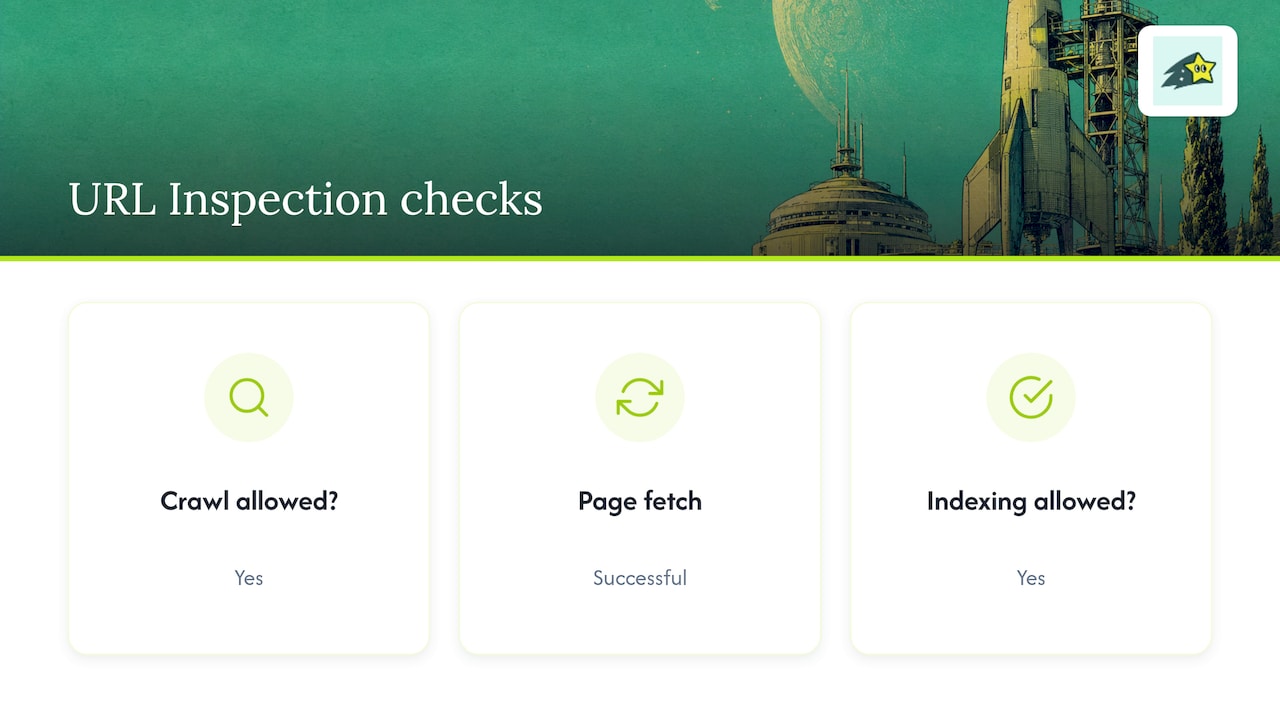
Google's help page on checking whether a URL is available to Google says to use the URL Inspection tool and confirm three values: "Crawl allowed?" is Yes, "Page fetch" is Successful, and "Indexing allowed?" is Yes. Test at least three URLs: two that should be crawlable and one that you just blocked. If the wrong ones come back blocked, revert immediately.
Use the robots.txt report
Google's robots.txt report shows the robots.txt files Google found for the top 20 hosts, the last fetch status, the file size and any parsing issues. After you unblock important URLs or fix a fetch error, you can request a recrawl of the file from its menu. Google notes this does not guarantee an immediate recrawl of the unblocked URLs, so expect some delay.
Watch for weeks, not hours
The Pages report in Search Console groups URLs by indexing status, including "Blocked by robots.txt." Give it a few weeks after a change. Looking at total crawl requests over that period is more telling than looking at impressions on day two.
Fixing pages that are blocked by robots.txt
If Search Console lists important pages as blocked, work through this order:
- Find the rule. Compare the Disallow lines in your live file against the blocked URL. The URL Inspection tool confirms whether a URL is blocked.
- Find where the rule came from. It may be Shopify's default (correct for cart, checkout and similar paths), a rule in your robots.txt.liquid template, or something an app or an old workaround added.
- Narrow or remove only that rule. Edit the template and remove or narrow the one matching line. Deleting the template entirely restores Shopify's default.
- Confirm on the live URL. Re-inspect the URL before asking Google to look again.
- Request a recrawl and monitor. Ask for a recrawl of the file, request indexing for key pages, and watch the Pages report.
Do not add noindex as a shortcut while the block is still in place. Google cannot read a page-level noindex on a page it is not allowed to crawl. To remove a public page that shows as "Indexed, though blocked by robots.txt," you first unblock it so Google can see the noindex, as SEO Heatmap explains. Google's own guidance agrees that noindex, X-Robots-Tag headers or password protection are the proper tools to keep a page out of results.
If the page is unblocked and still not showing up, the cause is usually not robots.txt. Our help article on why pages are not indexed walks through the other common reasons.
The part robots.txt cannot do: knowing what a block costs you
A robots.txt mistake does not announce itself. Pages drop out of the index slowly, and traffic declines over days or weeks. By the time someone notices, you may not know which pages, which keywords or how much revenue was affected.
That is why the habit around the file matters as much as the file:
- Know your top revenue pages before the edit, so you know what to inspect.
- Keep an eye on crawl and indexing status afterward, so a block is found in days instead of months.
- Keep an eye on downtime, errors and SEO health, so one problem does not hide another.
This is the gap Cromojo is built for. Website Monitoring covers downtime, errors and SEO health, and SEO Revenue ties search performance to revenue, so you can see whether a page that matters is earning what it did before your change.
Our perspective
Most robots.txt problems we hear about are not syntax problems. They are visibility problems. Someone made a reasonable edit, nothing broke loudly, and weeks later organic revenue was lower with no obvious reason.
We built Cromojo around the idea that analytics should be revenue-first. When revenue is attributed down to the keyword and page, a crawl change stops being an abstract technical risk. You can see exactly which pages earn money, and you know which ones to protect before you open the code editor.
Indexing is the second half of that. Our Automated Indexing submits your URLs to Google, Bing, Yandex, Baidu and AI search, supports bulk URL submissions and sends instant indexing notifications. After you fix a block, you are not left waiting and hoping that crawlers come back on their own schedule.
Our advice for a small team: keep the default file unless you have a clear reason, change one thing at a time, and let your analytics tell you whether the change helped.
Cromojo for Shopify stores
If you run a Shopify store, Cromojo connects revenue analytics, indexing and site monitoring in one platform. It integrates directly with Shopify, Stripe and Google Search Console, uses cookieless tracking, and requires minimal setup across any tech stack.
With Automated Indexing, you can submit new and fixed URLs in bulk after a robots.txt change and get notified when they are indexed. Plans are tiered by pageviews and tracked sites: Starter is $19 per month, Pro is $49 per month, Business is $129 per month and Agency, for teams managing several client sites, is $299 per month. A free plan and a free trial are also available. See the full list on the pricing page.