


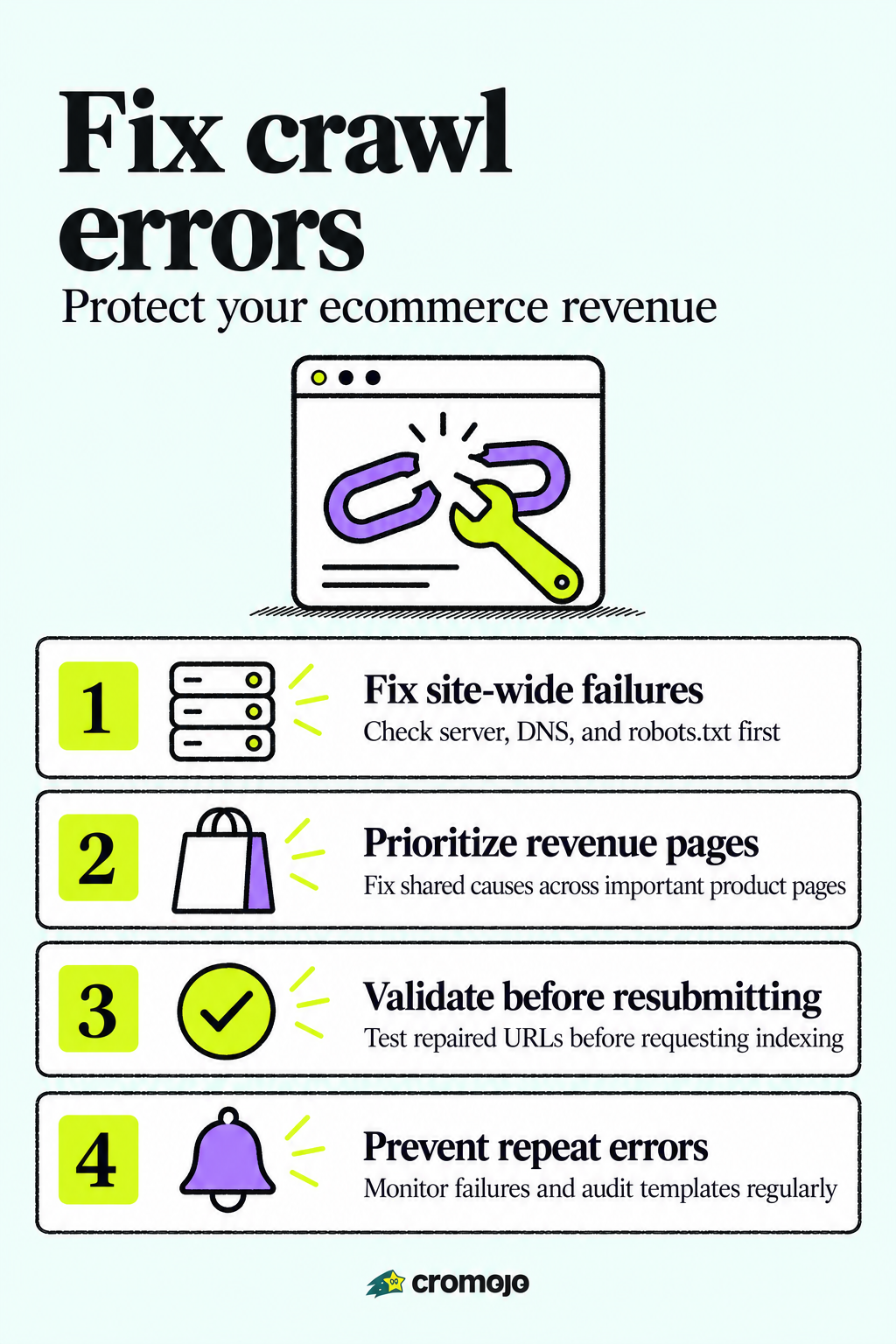
Open Google Search Console's Coverage or Pages report and inspect a handful of affected URLs with URL Inspection first. Then fix whatever is breaking site-wide access, since server, DNS, or robots.txt problems block Googlebot from every page and must come before anything URL-specific. Remove accidental noindex tags or restore/redirect broken pages as needed, then use Request Indexing and click Validate Fix on your priority pages.

What Are Crawl Errors and Why Do They Block Indexing?
Crawl errors fall into two categories, and mixing them up wastes time. Site-level errors stop Googlebot from reaching your entire domain: a DNS misconfiguration, a server returning 5xx errors on every request, or a robots.txt file that's unreachable or misconfigured. URL-level errors affect individual pages: a 404, a redirect loop, a stray noindex tag, or a "soft 404" where the page technically loads but Google decides it's empty or low value.
The distinction matters because Google's crawling and indexing documentation treats these as fundamentally different problems requiring different fixes. A site-level outage can silently suppress crawling across thousands of URLs in hours. A single 404 rarely does lasting damage.
HTTP status codes are how your server talks to Googlebot, and getting them wrong sends the wrong signal. 200 says "here's the content," a 301 says "moved permanently, update your records," and a 404 says "gone, stop asking." Soft 404s happen when a server returns a 200 status code but the page is essentially blank, often because:
- A single-page application fails to render content before Googlebot gives up
- JavaScript or CSS resources needed to build the page are blocked by robots.txt
- A "no results found" or empty category page loads with a 200 status instead of a proper 404
Soft 404s confuse crawlers because the server insists everything is fine while the rendered page says otherwise, according to Google's JavaScript SEO guidance.
How Do You Find Crawl Errors in Search Console?
Start in the Page Indexing report (still labeled Coverage in some accounts) and let it group errors into categories like "Not found (404)," "Server error (5xx)," and "Crawled, currently not indexed." Google's own guidance on the Page Indexing report confirms this is the authoritative starting point for figuring out why pages aren't showing up in search.
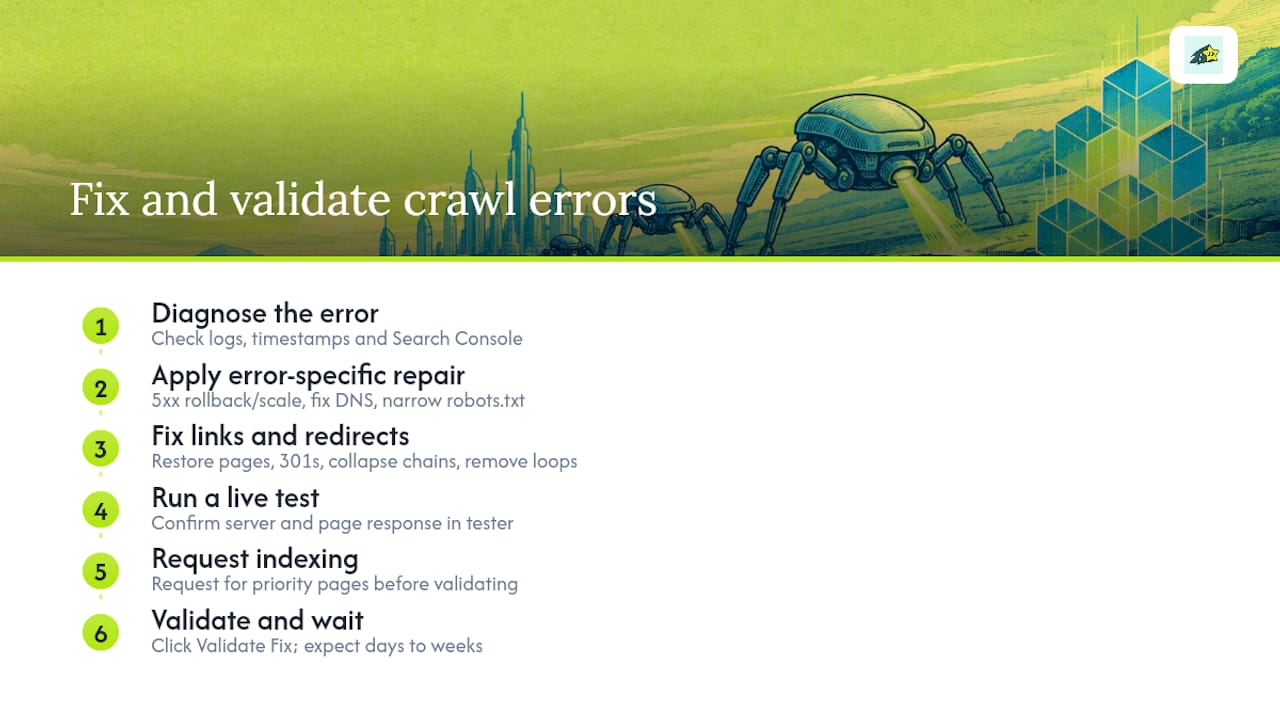
Work through the diagnosis in this order:
- Pick 5 to 10 representative URLs from each error category rather than trying to inspect every single one.
- Run URL Inspection on each sample, then click "Test Live URL" to see how Googlebot renders the page right now, and compare that against the indexed version Google has stored.
- Check Crawl Stats under Settings for spikes in host availability issues or sudden drops in successful crawl requests, which often line up with a bad deploy or hosting incident.
- Cross-reference server logs and CDN dashboards for the exact time window flagged in Crawl Stats to find what actually broke.
- Confirm the pattern with a robots.txt tester, an HTTP header checker, and a small crawl using a tool like Screaming Frog to see if the issue is isolated or systemic.
Pro Tip:If URL Inspection shows a page as indexed but the live test shows a 404 or a noindex tag, trust the live test. That's the current state Googlebot will see on its next visit, and it will eventually overwrite whatever's in the index now.
Step-by-Step Fixes for the Most Common Crawl Errors
Each error class needs a different repair, and jumping straight to "resubmit everything" without diagnosing the cause usually wastes a validation cycle. Here's the practical breakdown.
5xx / server errors. Check host metrics and server logs for the exact timestamps Search Console flags. Look at what deployed around that window. If the server is genuinely overloaded, it's fine to return a 503 briefly. Googlebot automatically slows its crawl rate when it detects host overload, but relying on 503s for more than a short window risks suppressing crawl activity longer term. Roll back the bad deploy or scale up capacity, then re-run a live test to confirm the server responds correctly.
DNS errors. Verify your A, AAAA, and CNAME records point where they should, check TTL settings, and confirm your DNS provider isn't experiencing an outage. A quick dig command or any online DNS checker will confirm resolution from multiple locations.
Robots.txt issues. Run the robots.txt tester to see exactly which rules are blocking what. Narrow overly broad Disallow rules, and make sure JavaScript and CSS files needed for rendering aren't accidentally blocked. Confirm the robots.txt file itself loads without a server error.
404s versus soft 404s. Decide case by case: restore the page if it was removed by mistake, add a 301 redirect if the content moved permanently, or leave it as a clean 404/410 if it's genuinely gone. Fix internal links pointing to dead URLs and remove them from your sitemap. Avoid the common shortcut of redirecting everything to the homepage, since that pattern itself can trigger soft 404 treatment.
Redirect errors. Collapse redirect chains into a single hop, eliminate loops, and use one clean 301 rather than stacking multiple redirects. Test both the server response and the behavior in a browser, since client-side and server-side redirects can disagree.
Stray noindex or canonical tags. Audit your page templates for noindex tags left over from staging or a CMS default. Confirm with a live test that the tag is gone, then request indexing.
"Crawled, currently not indexed." This status usually means Google visited the page but decided it wasn't worth indexing, often due to thin or duplicate content. Improve the content's uniqueness, add internal links from pages Google already trusts, and make sure the URL sits in your sitemap.
Once the underlying issue is fixed, run a live test, then use Request Indexing for your priority pages before clicking Validate Fix in the Coverage report. Validation is a re-crawl signal, not an instant switch. Google's own guidance on validating fixes notes the process runs over days, and clicking Validate Fix repeatedly doesn't speed anything up. Expect a full site recrawl to typically take several days up to a few weeks depending on your site's size and crawl frequency.
How Do You Prioritize Fixes Instead of Chasing Every URL?
Not every flagged URL deserves the same urgency, and treating them equally is how teams burn a week fixing 200 low-value pages while a revenue-driving category page stays broken. Google itself notes that plenty of non-indexed pages are intentional exclusions, not errors, so the goal is getting critical pages indexed, not chasing a zero-error report.
- Sort Coverage issues by affected-URL count and recent trend. A cluster of 400 URLs sharing the same error is a template problem, not 400 separate problems.
- Inspect two or three examples from the largest cluster to confirm they share a template, a redirect rule, or a sitemap misconfiguration.
- Fix the shared cause once rather than editing individual pages. Google's troubleshooting documentation points out that a single template or redirect fix often clears the entire group on the next crawl.
- Submit a small validation subset first, such as your top 20 priority URLs in a dedicated sitemap, rather than requesting indexing on thousands of pages at once.
- Log the fix and owner (engineering, hosting, content) so status is visible to whoever's tracking the incident, and note the expected recrawl window.
For larger catalog sites where crawl volume itself is the bottleneck, understanding crawl budget helps explain why Google might be ignoring pages that have no technical error at all.
What Prevents Crawl Errors From Coming Back?
Fixing the current backlog is only half the job. A few habits keep the same errors from resurfacing next quarter.
- Keep your sitemap limited to pages you actually want indexed, and remove URLs the moment they're redirected or deleted.
- Serve real HTTP status codes for broken or missing pages, especially in single-page applications where client-side routing can mask a 404 behind a 200 response.
- Use noindex for pages you want crawled but excluded from search results, and reserve robots.txt for controlling crawl traffic, not for hiding content. Robots.txt can't reliably keep a page out of the index, since a blocked URL can still surface if other pages link to it, and a robots.txt block prevents Google from even seeing a noindex tag on that page.
- Set up alerts for spikes in 5xx responses, DNS failures, or host-load warnings in Crawl Stats so you catch an incident in hours instead of weeks.
- Audit templates quarterly for stray noindex tags left over from a staging environment.
Pro Tip:Treat a redirect rule change the same way you'd treat a database migration. Test it on a staging URL, check the response headers, and only then push it to production. Redirect chains are one of the most common self-inflicted crawl problems, and they're entirely avoidable.
How Does Cromojo Help You Catch Crawl Errors Faster?
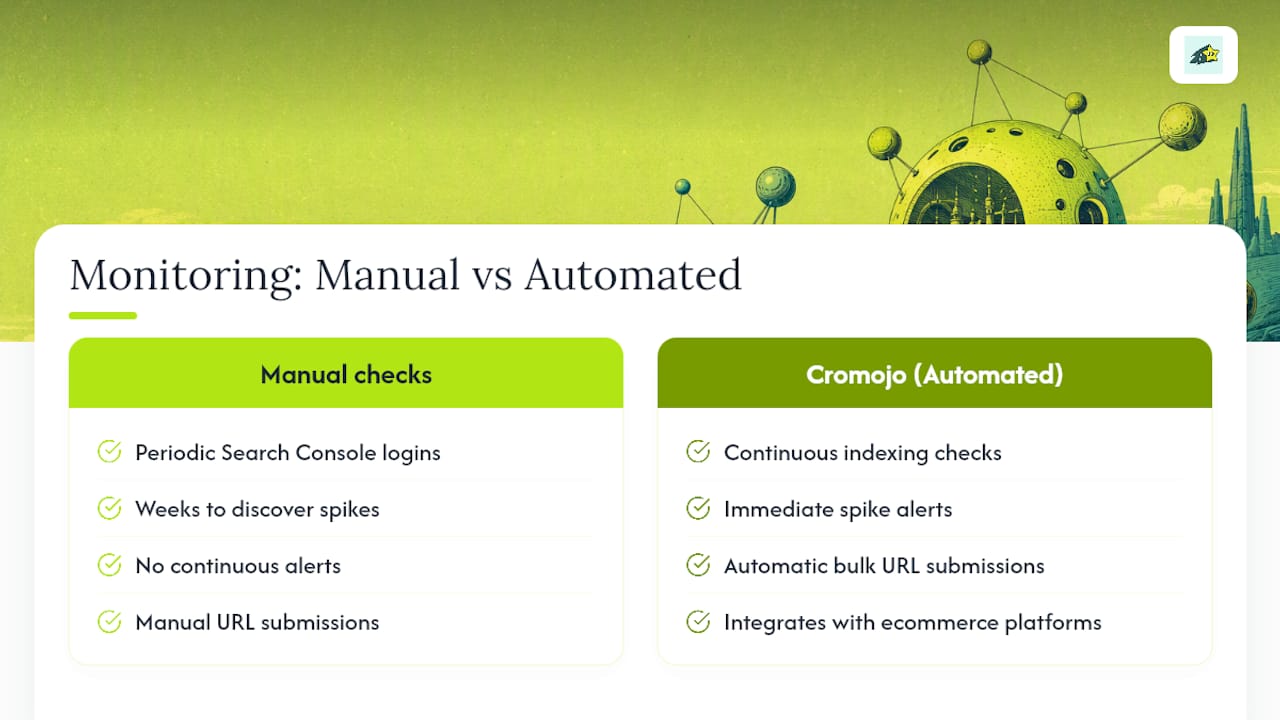
Diagnosing crawl errors manually works, but it means someone has to remember to check Search Console regularly. Cromojo's automated indexing feature monitors your site's indexing status continuously and flags problems as they happen instead of weeks later when traffic has already dropped.
- Automated indexing checks and re-submission to Google, Bing, Yandex, and Baidu without manual sitemap resubmission.
- Website monitoring that alerts on downtime, errors, and SEO health issues before they compound into a Coverage report disaster.
- Bulk URL submission for teams managing large product catalogs where fixing one template affects thousands of pages at once.
Philippe's editorial work on this topic centers on one recurring pattern: teams that treat every 404 as equally urgent burn far more engineering time than teams that triage by revenue impact first. Combining that root-cause discipline with automated monitoring is what actually keeps a Coverage report clean.
Common Mistakes When Fixing Crawl Issues
Protect the pages that make you money first. If a checkout flow or a top category page shows a crawl error, that gets fixed before a blog post from three years ago. Broaden your scope to secondary pages only after the revenue-critical ones are clean and validated.
The single most common mistake I see is mass Request Indexing on hundreds of URLs without touching the root cause. It doesn't work. Google will simply recrawl the same broken template and log the same error again, and repeated Validate Fix clicks don't accelerate anything.
Whatever fix goes out, tell hosting or engineering exactly what changed and why, then watch the Coverage report for regressions over the following two weeks. Errors that reappear after a "fix" almost always trace back to a deploy that reintroduced the same template bug.
Philippe
Stop Chasing Crawl Errors Manually
Cromojo is built for teams who'd rather catch a crawl problem the day it starts than discover it three weeks later in a quarterly report. Instead of logging into Search Console on a schedule and hoping you don't miss a spike, Cromojo runs continuous indexing checks, alerts you when crawl errors spike, and handles bulk URL submissions automatically when you fix a batch of pages at once.
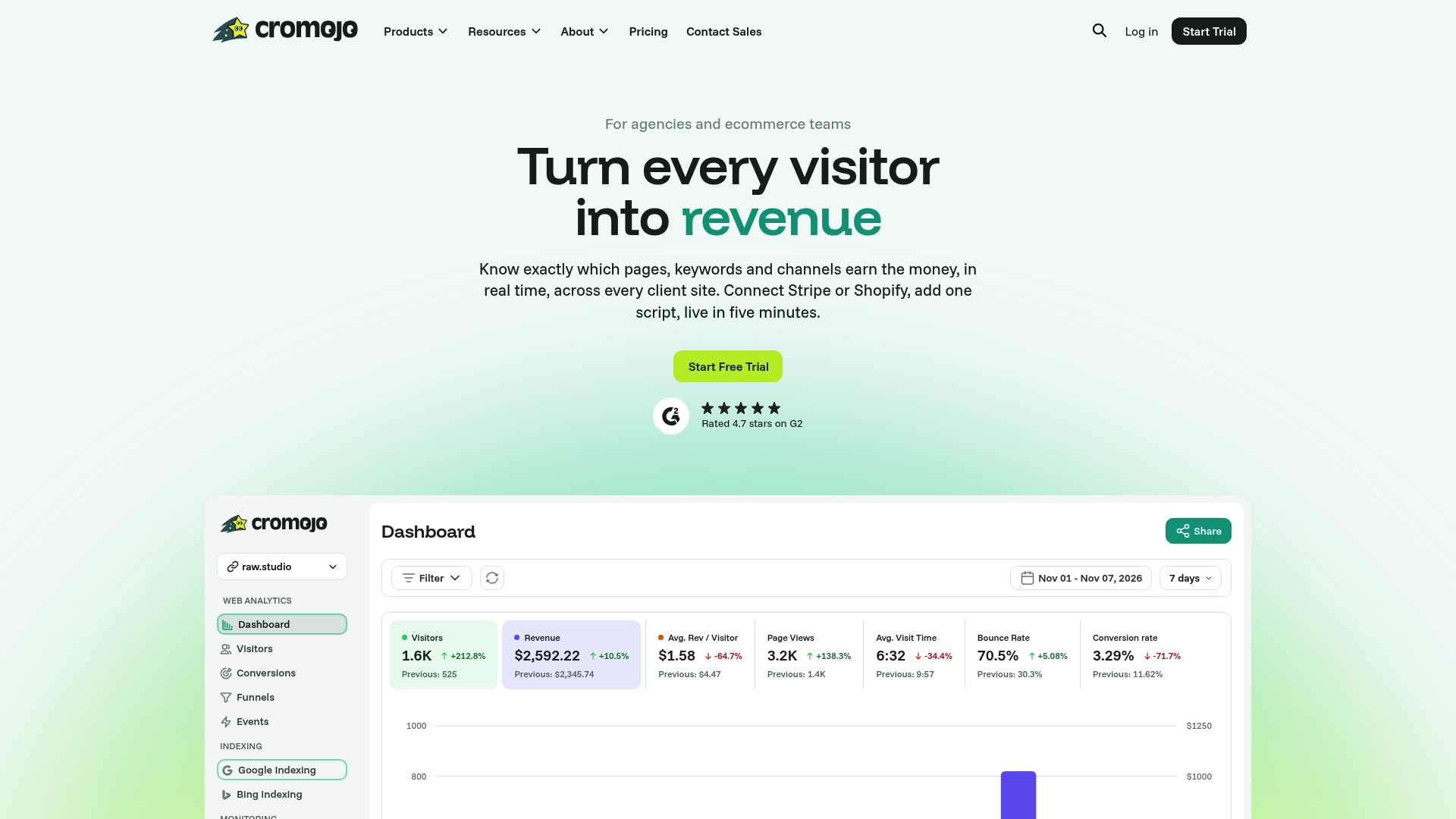
This matters most for ecommerce sites where a single broken category template can knock hundreds of product pages out of the index overnight, quietly cutting off the traffic that turns into revenue. The platform integrates with ecommerce and payment platforms, allowing you to track which newly reindexed pages are converting, not just crawling. If your site runs on tight margins where a week of poor indexing means real lost sales, that visibility is worth the setup time.
Start with the Free Plan to see how automated indexing surfaces issues on your own site, or move straight to a paid tier if you're already managing multiple properties. Check current pricing and plan details on the Cromojo pricing page.