


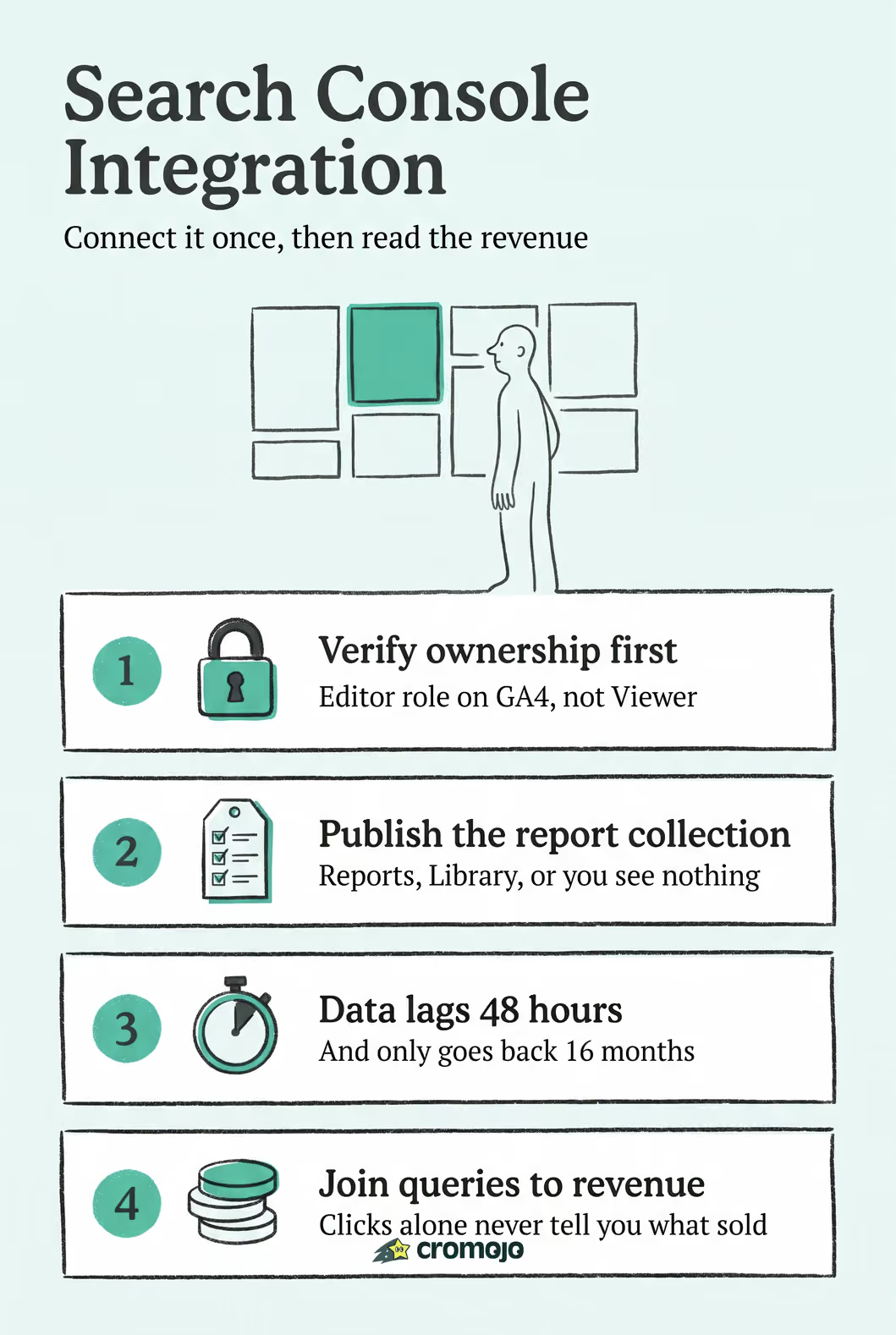
Yes, you can integrate Google Search Console with GA4, Looker Studio, and warehouse tools through the API, and the setup takes about ten minutes once permissions are in order. Before you touch a single menu, verify you're a confirmed owner of the property in Search Console and hold Editor role on the GA4 property you're linking. Do that first, and you'll skip the two errors that cause most support tickets. Data typically shows up in reports within about 48 hours.
What Do You Need Before Connecting Search Console?
Most integration failures trace back to one thing: someone skipped verification or permissions and jumped straight to the linking screen. Fix that order first.
Your first decision is property type. A domain property covers every subdomain and protocol (http, https, www, non-www) under one roof, verified through a DNS TXT record with your registrar. A URL-prefix property covers exactly one URL path and protocol, and it accepts faster verification methods like an HTML file upload or a Google Analytics tag. If your site has multiple subdomains or you switched from http to https recently, the domain property saves you from managing five separate properties. If you just need one clean URL tracked, URL-prefix is simpler to verify.
Run through this checklist before you go near GA4:
- You're listed as a verified owner in Search Console, not just a "delegated user."
- Your Google account holds Editor role on the GA4 property (Viewer isn't enough).
- Ideally, the same Google account manages both Search Console and GA4 to avoid cross-account consent issues.
- Your site's canonical URLs match what's actually indexed. Mismatched trailing slashes or protocol versions will quietly break report joins later.
- DNS verification is confirmed active, especially for domain properties, since it's the method least likely to trigger access-denied errors during authorization.
Skip any of these and the link will often "succeed" on screen while showing zero data for days.
How Do You Link Search Console to GA4?
Once permissions check out, the actual linking process is short. Here's the exact path:
- In GA4, go to Admin (the gear icon, bottom left).
- Under Product Links, click Search Console Links.
- Click Link, then choose the Search Console property you want to connect.
- Select the GA4 web data stream that matches that property's domain or URL prefix.
- Review the summary and click Submit, then Confirm.
That's it on the surface, but two details trip people up constantly. First, each GA4 web data stream can link to only one Search Console property, and each Search Console property can link to only one web data stream. If you manage several sites, you need separate GA4 properties or streams for each one. There's no way to fan one Search Console property out to multiple streams.
Second, and this catches almost everyone the first time: the Search Console report collection in GA4 is unpublished by default. Linking the accounts doesn't automatically surface the reports. You have to go to Reports > Library, find the Search Console collection, and publish it manually before the Queries and Landing Page reports appear in your left-hand navigation.
Pro Tip:Give it a full 48 hours before you assume something's broken. Search Console data lags behind real-time by design, so a link that shows nothing on day one is often working exactly as intended. Once data arrives, check the Queries report for search terms and the Landing Page report to see which URLs are pulling clicks and impressions.
Should You Use Looker Studio, the API, or a Warehouse Connector?
The GA4 link covers most marketers, but it's not the only door into Search Console data, and picking the right one depends on what you're trying to do with it.
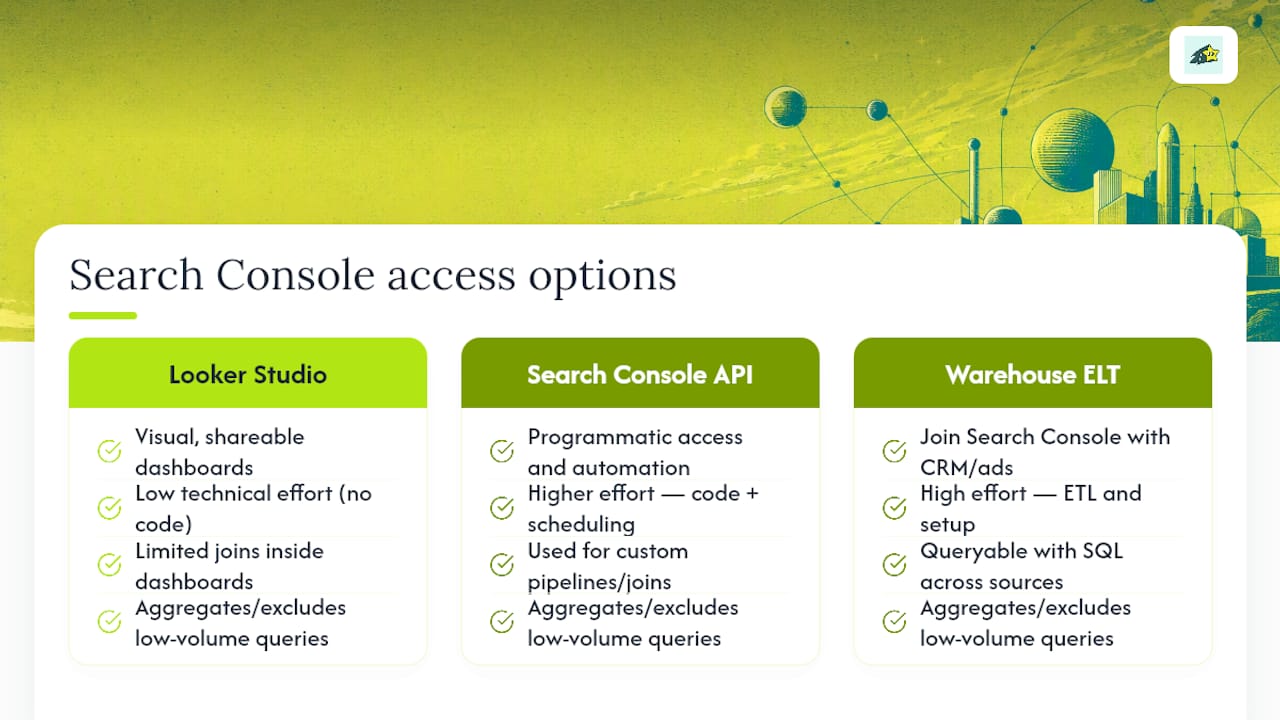
Looker Studio works well when you want a visual, shareable dashboard without writing a line of code. Google's native connector pulls in Search Console metrics directly, but there's a catch worth knowing before you build anything: a single data source can report either site impressions or URL impressions, not both at once, so comparing them side by side usually requires two separate data sources. Fine for a quarterly report deck, less fine if you're building a granular daily tracker.
The Search Console API is the right call when you need programmatic access rather than a dashboard, things like bulk sitemap submissions, pulling verified site lists, or automating query extraction into a scheduled job. It's the backbone for anyone piping data into a custom system rather than clicking through a UI. Google documents endpoints and quota limits on its developer site, and quotas are generous enough for daily automated pulls on most small-to-midsize sites.
ELT connectors into BigQuery or another warehouse make sense once you're joining Search Console data against other sources, ad spend, CRM records, revenue, and need it queryable with SQL rather than filtered in a dashboard. Whichever path you choose, expect Search Console to omit or aggregate low-volume and sensitive queries, so don't be alarmed by blank or grouped rows in your extracted data. It's a privacy safeguard, not a bug.
How Fresh Is Search Console Data, and How Long Does It Last?
Treat Search Console data as a rearview mirror, not a live feed, and plan your reporting cadence accordingly.
Data typically appears in linked reports about 48 hours after Search Console processes it, and Search Console itself retains data for up to 16 months according to Google's own documentation. That retention window matters if you're building year-over-year comparisons; anything older simply isn't there to pull.
Supported dimensions in the GA4 integration include landing page, query, country, and device, but Search Console data doesn't carry session-level or user-level dimensions the way GA4's own event data does. You can't cross-tabulate a search query against a specific user's purchase history inside the native reports.
To keep the two datasets aligned, canonicalize your URLs consistently, keep sitemap and robots.txt settings stable, and double-check your property scope covers exactly what your analytics tool is measuring. After any major site migration or URL restructuring, check both platforms weekly for a month, then fall back to monthly monitoring once the data settles.
Why Isn't Search Console Data Showing Up?
Most integration errors fall into four buckets, and each has a fast fix.
- "No Search Console data" in GA4: Wait the full 48 hours first. If it's still empty, confirm you're a verified owner and hold Editor role, not Viewer.
- "Invalid grant" during authorization: Re-authenticate and make sure you're using the same Google account across both consent screens; a stale or mismatched session token causes this almost every time.
- Property missing from the link menu: Recheck whether you verified a domain property or URL-prefix property, since GA4 will only show streams matching that exact property type.
- Reports linked but invisible in GA4: Go to Reports > Library and publish the Search Console collection; it stays hidden by default even after a successful link.
Pro Tip:If your query numbers look off after linking, run a quick URL Inspection on the specific page in question. It tells you the page's actual index status, which is often the real explanation behind a query that suddenly stopped showing impressions.
How Cromojo Turns Search Console Data Into Revenue Insight
Search Console tells you which queries and pages earn clicks. It doesn't tell you which of those clicks turned into a sale, and that gap is where most SEO reporting stalls out.
Cromojo closes it by pulling Search Console query and landing-page data alongside real-time revenue tracking from Stripe and Shopify, so a marketer can see not just traffic but dollars per keyword and per page.
The workflow runs in a straight line:
- Connect Search Console and map its landing-page URLs to the same canonical keys used in revenue tracking, since mismatched canonicalization is the most common reason queries can't be joined to conversions.
- Attribute revenue back to the specific queries and pages that drove it.
- Prioritize fixes, whether that's an indexing request for a page that dropped out of Search Console or a content update for a page getting clicks but no sales.
What Do You Gain by Linking Search Console to Google Ads and Other Tools?
GA4 is the most common pairing, but it's far from the only one worth setting up, and skipping the others leaves real signal on the table.
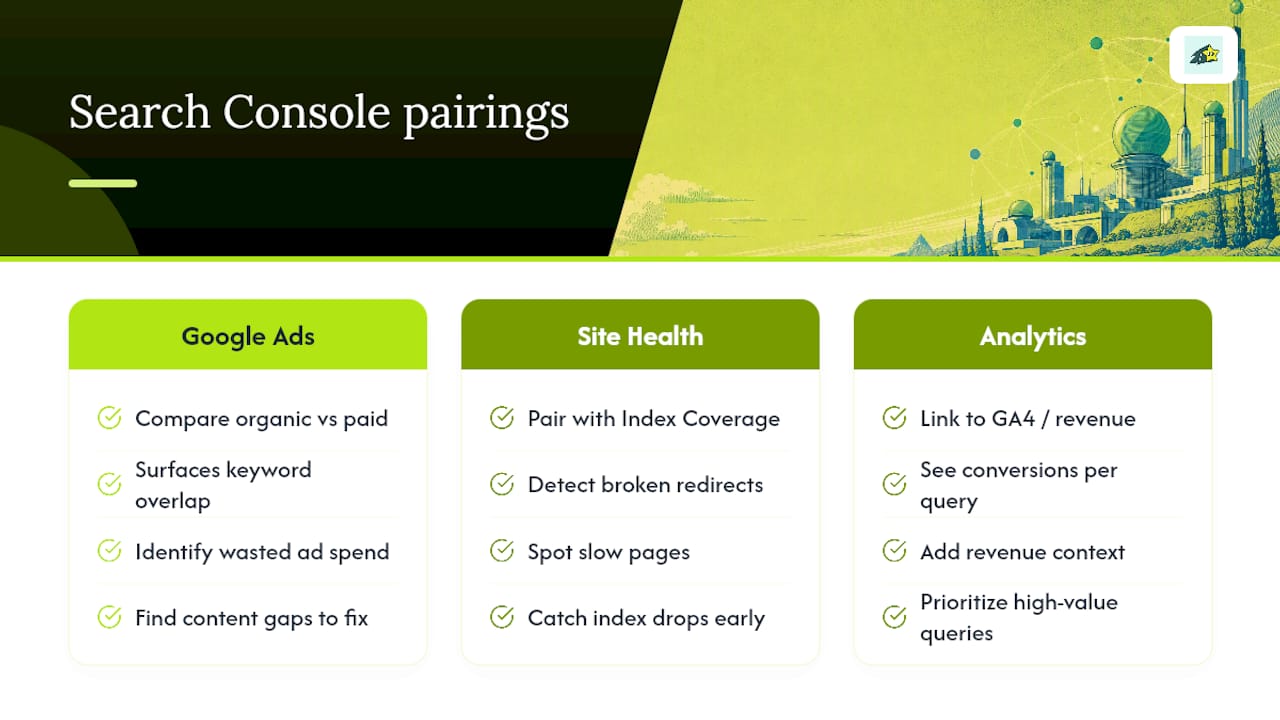
Linking Search Console to Google Ads lets you compare organic query performance against paid keyword performance in the same account view, which surfaces overlap you'd otherwise miss. If you're paying for clicks on a keyword phrase that already ranks well organically, that's wasted budget you can redirect. Conversely, if a high-value query converts well in Ads but your organic listing barely shows up, that's a content gap worth closing before paying to fill it forever.
Beyond Ads, the practical benefit of connecting Search Console anywhere is context. A query report in isolation tells you what people typed. A query report next to conversion data, ad spend, or site health monitoring tells you what to actually do about it. Search Console alone can't tell you a page is slow, has a broken redirect, or dropped out of the index entirely, but pairing its Performance and Index Coverage reports with regular site monitoring catches those issues before they quietly erode rankings.
The pattern holds across every pairing: Search Console is strongest as an input to a bigger picture, not as a standalone dashboard. Treat it as the search-behavior layer in a stack that includes ad performance, site health, and revenue data, and the individual numbers start meaning something instead of just sitting there.
What Should You Actually Do With Search Console Data?
Raw access to Queries and Landing Page reports doesn't improve rankings by itself. What moves the needle is a consistent habit of checking specific things on a schedule, not just glancing at totals once a month.
Start with Index Coverage. If pages you care about aren't indexed, no amount of keyword optimization matters, because Search Console's own monitoring tools exist specifically to flag crawl and indexing problems before they become ranking problems. Submitting an updated sitemap after a big content push speeds up discovery meaningfully compared to waiting for organic crawling.
Next, watch click-through rate against position, not position alone. A page ranking in position 4 with a low CTR often has a weak title tag or meta description, not a ranking problem; a page in position 9 with a strong CTR relative to its position suggests real demand you could capture with a small ranking push. Position alone tells you where you sit. CTR tells you whether your listing is worth clicking.
Finally, track query trends over time, not single-week snapshots. A query that's slowly climbing in impressions but flat in clicks over eight weeks usually needs a content refresh, not a full rewrite. Set a recurring 15-minute check every two weeks rather than a monthly deep dive; smaller, more frequent checks catch drift before it compounds into a ranking drop you have to reverse instead of prevent.
What Should You Know About Search Console Privacy and Data Sharing?
Search Console's design already leans privacy-first, and understanding why helps you interpret gaps in your reports instead of mistaking them for bugs.
Google withholds or aggregates low-volume and potentially sensitive queries before they ever reach your reports, whether you're viewing them natively or pulling them through a connector. That's not a setting you can toggle off. It's baked into how the data gets exposed, and it means your exported query list will never be a complete record of every search term that led to a click.
When you connect Search Console to GA4, Looker Studio, or a warehouse, you're granting that specific Google account's linked project access to your search analytics, not handing your data to a third party outside Google's ecosystem. The scope of that access is limited to what the API exposes: performance data, sitemap status, and verified site lists. It doesn't include anything about individual searchers' identities.
If you're layering in a third-party tool like Cromojo, check that it's pulling data through Google's official API rather than scraping or requesting broader account permissions than the integration actually needs. A tool that only asks for read access to search analytics is a narrower, safer footprint than one requesting full account management rights it doesn't use.
Choosing the Right Integration Path
Not every team needs the same setup, and picking one based on hype rather than actual workflow wastes time. A marketer running a single site is usually done with GA4 and Looker Studio; verify ownership, link it, and move on. An analyst juggling multiple properties or joining search data against other sources should plan an API or ELT pipeline from the start rather than retrofitting one later. An ecommerce owner who wants to know which queries actually drive sales, not just clicks, gets more out of trialing a revenue attribution platform than building another dashboard nobody checks.
Get More From Your Search Console Data With Cromojo
Search Console tells you what people searched. Cromojo tells you what that search was worth in actual dollars, connecting query and landing-page data straight to Stripe and Shopify revenue so you're prioritizing pages by profit, not just traffic volume.
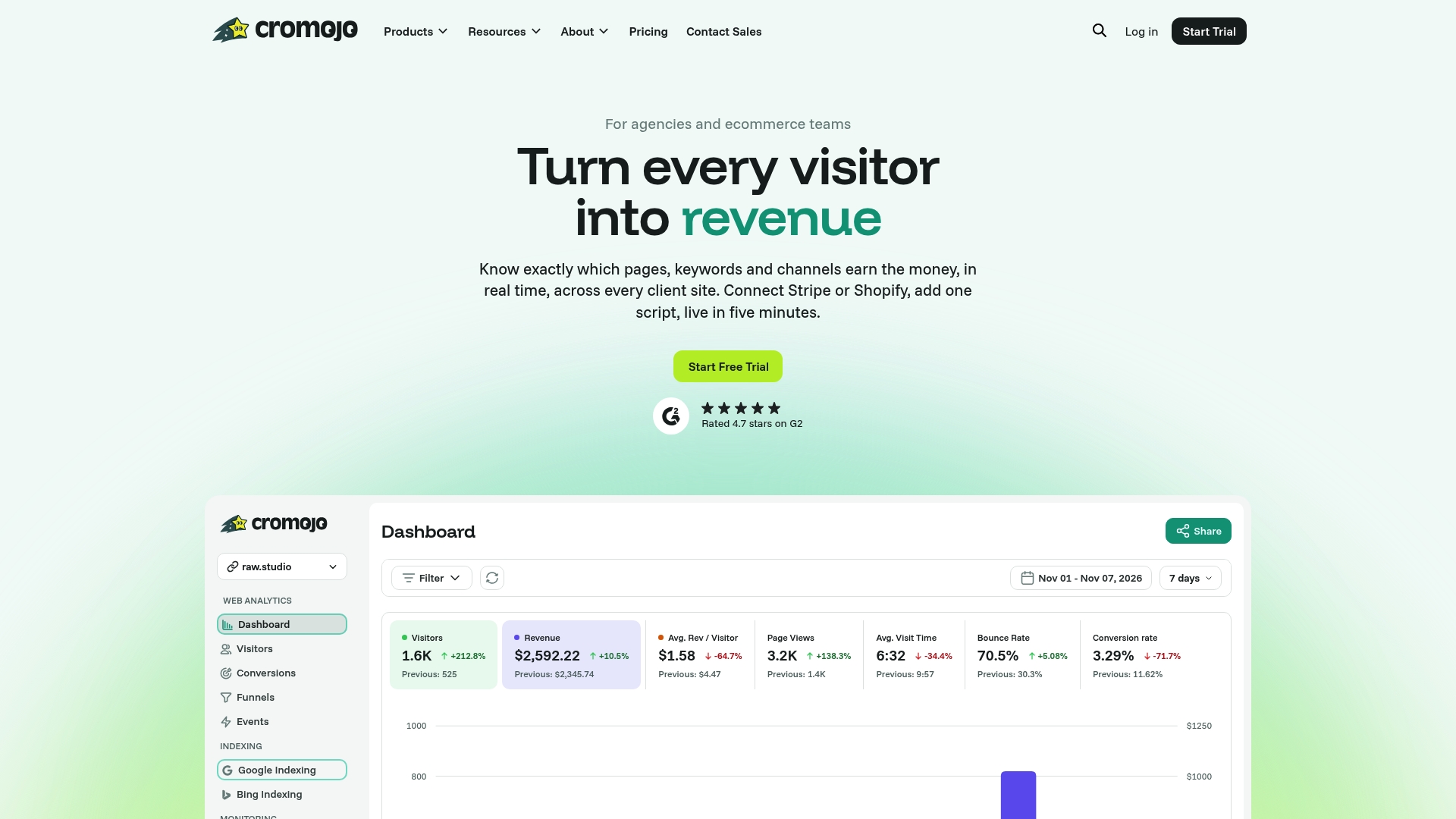
That's the gap most Search Console setups leave open: you can see impressions and clicks all day, but nothing about revenue impact without stitching data together manually. Cromojo's revenue attribution maps search queries and landing pages directly to sales, so you know within minutes which page to fix first and which one to leave alone. Pair that with automated site monitoring that flags downtime or SEO health issues before they cost you rankings, and the whole picture, search performance, site health, and revenue, lives in one place instead of three tabs. Start a free trial and connect your Search Console property to see which queries are actually paying your bills.