



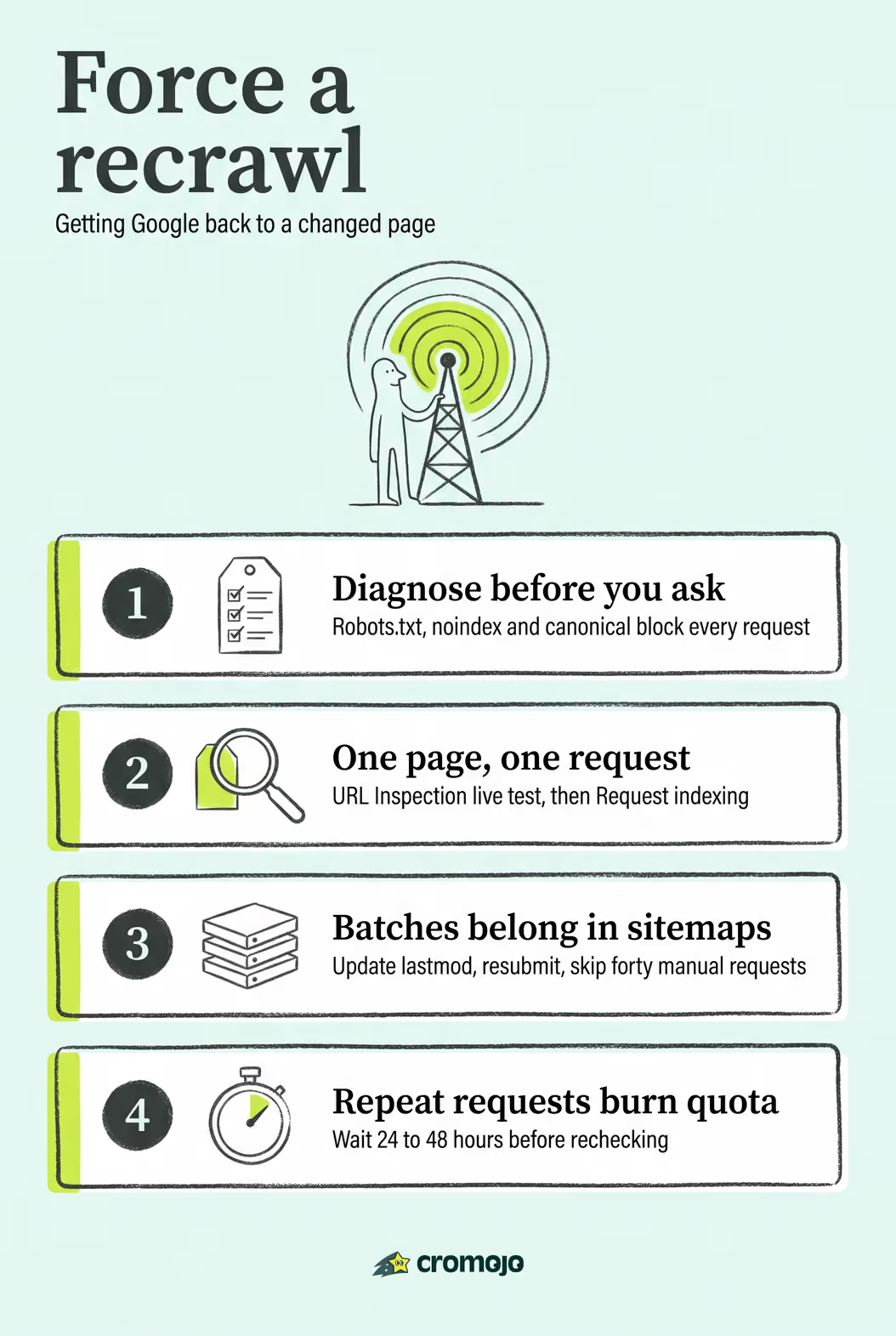
You can't force an instant crawl, but you can push your URL to the front of the line. The two moves that matter right now: run Request indexing inside Search Console's URL Inspection tool for a single page, or resubmit your XML sitemap if you've updated many URLs at once. Google typically acts on these signals within 24 to 48 hours for actively crawled sites, though the official guidance says full recrawling can stretch from a few days to a few weeks.
Do this now, in order:
- Open URL Inspection, run a live test, then click Request indexing if the live version looks correct.
- If you've changed more than a handful of pages, update your sitemap's
lastmoddates and resubmit it in Search Console. - Before requesting anything, check for a stray
noindextag, a robots.txt block, or a server error. Fixing those matters more than repeating the request.
Hammering "Request indexing" every hour won't help. Google enforces quotas per property, and a repeated request against a blocked or broken page just burns that quota without producing a recrawl.
How Do You Use URL Inspection to Force Google Recrawl?
URL Inspection is the fastest legitimate way to request a recrawl for one URL, and most people use it wrong by skipping the diagnostic step first.
- Paste the URL into the inspection bar at the top of Search Console. Google shows you two views: the last recorded crawl and, once you run it, a live test.
- Run the live test. This tells Google to fetch the page right now and shows you exactly what its renderer sees, including the rendered HTML, mobile usability, and any blocking resources.
- Read the Coverage and Last Crawl fields carefully. If the "Last crawl" date is stale but the live test looks clean, that's your cue to request indexing. If the live test itself throws an error (redirect, 404, blocked resource), fix that first.
- Click Request Indexing. Google queues the page for a priority crawl. This isn't instant, and it isn't unlimited. Confirm you're inspecting a URL under a verified property; unverified domains won't show the option at all.
- Wait 24 to 48 hours before doing anything else. If nothing changes after that window, don't resubmit. Go debug indexability instead, since a repeated request on a broken page just wastes the queue slot.
Pro Tip:Run the live test before you touch "Request indexing." Half the wasted requests site owners submit are for pages that fail the live test itself, usually from a blocked script or an accidental redirect nobody noticed.
When Should You Resubmit Your XML Sitemap?

Sitemap resubmission is the right tool when you've touched a batch of URLs rather than one. Trying to request-index 40 product pages one at a time through URL Inspection is a slow, quota-burning approach. A sitemap tells Google, in one shot, which pages exist and when they last changed.
Before resubmitting, get the basics right:
- Update the
lastmodtimestamp on every changed URL so Google can prioritize what's actually new. - Make sure canonical tags on those pages point to themselves (or the correct canonical), not to an outdated URL.
- Strip out any URLs that now redirect, 404, or carry a
noindextag. A sitemap full of dead weight signals sloppy site hygiene. - Submit the sitemap under Sitemaps in Search Console. A successful resubmission shows a "Success" status with a discovered URL count that matches what you expect.
Google doesn't re-read your sitemap on a fixed schedule. Sites that publish frequently tend to get checked more often, but there's no published cadence to bank on. Resubmitting after a meaningful batch update is still worth doing; following an SEO content update workflow for boosted organic results can help guide these updates efficiently. It's a nudge, not a bell you can ring on demand, and per the Search Console help documentation, pairing a solid sitemap with strong internal linking gives Google the clearest possible path to your new or changed pages.
Can Automation Speed Up Indexing for Many URLs at Once?
The Indexing API and third-party indexing tools exist for one reason: manual, one-by-one requests don't scale past a handful of URLs a day. If you're publishing dozens of product pages, running seasonal catalog updates, or managing indexing for multiple client sites, automation is the practical answer.
- The Indexing API accepts programmatic push notifications when a page is added, updated, or removed, and it typically returns an acceptance response you can log and audit.
- Search Console's manual Request Indexing is built for occasional, high-priority single pages, not bulk operations.
- Automated indexing tools and the API tend to work best on sites that publish frequently or need near-real-time discovery, according to practitioner guidance on recrawl workflows.
- The reliable workflow is push, confirm, verify: send the update, check that the API or tool returned an acceptance response, then confirm the change in URL Inspection a day or two later.
Pro Tip:An acceptance response from an indexing tool only means Google received the signal, not that it reindexed the page. Always circle back with URL Inspection before assuming the job is done.
What's Blocking Google From Recrawling Your Page?
Requesting indexing on a page Google can't actually crawl is the single most common way site owners waste their quota. Work through this list before you request anything a second time:
- Robots.txt. Confirm the URL's path isn't disallowed. One misplaced wildcard rule can silently block an entire directory.
- Meta robots and X-Robots-Tag. A leftover
noindexfrom a staging environment is one of the most common causes of pages that "won't reindex" no matter how many times you ask. - Canonical tags. If your page canonicalizes to a different URL, Google will index that URL instead, not the one you're requesting.
- Redirects and server errors. A 301 loop, a soft 404, or a 5xx error during Googlebot's fetch attempt will stall indexing regardless of how many requests you send.
- JavaScript rendering issues. If critical content only appears after client-side rendering that Googlebot can't execute cleanly, the live test in URL Inspection will usually reveal the gap.
Run the live test, then cross-reference with server logs to confirm Googlebot actually attempted the fetch. According to Search Console's own troubleshooting guidance, fixing the underlying blocker always comes before requesting indexing again. Only re-request once you've verified the fix in a fresh live test, not before.
How Do You Confirm Google Actually Reindexed Your Page?
Checking too early is the most common mistake here. Give it a real window before declaring the request a failure.
- Immediately after requesting: run another live test in URL Inspection to confirm Google can now fetch the corrected version cleanly.
- At 24 to 48 hours: check whether the "Last crawl" timestamp has updated. Community reports on the Search Console help forum indicate that this is a common window observed for active sites.
- Beyond that: run a
site:search for the exact URL, or check the Coverage report for a status change from "Discovered" or "Crawled, not indexed" to "Indexed." - Cross-check server logs for a Googlebot hit around the time you submitted the request. No log entry usually means the request queued but hasn't been actioned yet, not that it failed.
If nothing has moved after 48 hours, don't repeat the request. Go back to the indexability checklist instead.
How Cromojo Handles Indexing Hints and Site Monitoring
Most wasted indexing requests trace back to one problem: nobody caught the server error, the stray redirect, or the stale crawl date before hitting submit again. Cromojo's automated indexing tool handles bulk URL submission across Google, Bing, Yandex, and AI search platforms, so agencies managing dozens of client sites aren't manually inspecting one URL at a time.
- Bulk submission pushes indexing hints for batches of updated URLs instead of one-by-one manual requests.
- Uptime and error monitoring flags 5xx errors and downtime before they silently block a crawl attempt.
- Alerts fire when a page's last recorded crawl goes stale, giving you a signal before rankings quietly slip.
What Actually Slows Down Reindexing (and What Doesn't)
Most advice on this topic treats "request indexing" as a magic button, and that's the part worth pushing back on. The button is a signal, not a summons. Google decides how much crawl budget your site earns based on server reliability, content quality, and how often your pages genuinely change, and no amount of clicking speeds that up.
What the conventional advice gets wrong is the order of operations. Site owners request indexing first and diagnose second, when it should be the reverse. A page with a lingering noindex tag or a canonical pointing somewhere else will fail every single request you throw at it, and you won't know why unless you check the live test first.
If you take one thing from this guide, prioritize the fix-then-push sequence. Resolve robots.txt and server errors before you touch the Request Indexing button, because Google's crawl quota per property is not infinite and every wasted request on a broken page is a request you can't use on a page that's actually ready. Bulk operations belong in your sitemap or an automated indexing workflow, not a manual queue meant for the occasional high-priority update.
Get Faster Indexing Signals Without the Manual Busywork
Manually inspecting URLs one at a time works fine for a single blog post. It falls apart fast for an ecommerce catalog with hundreds of SKUs or an agency juggling a dozen client sites, where the real cost isn't the indexing request itself but the hours spent finding which pages silently broke.
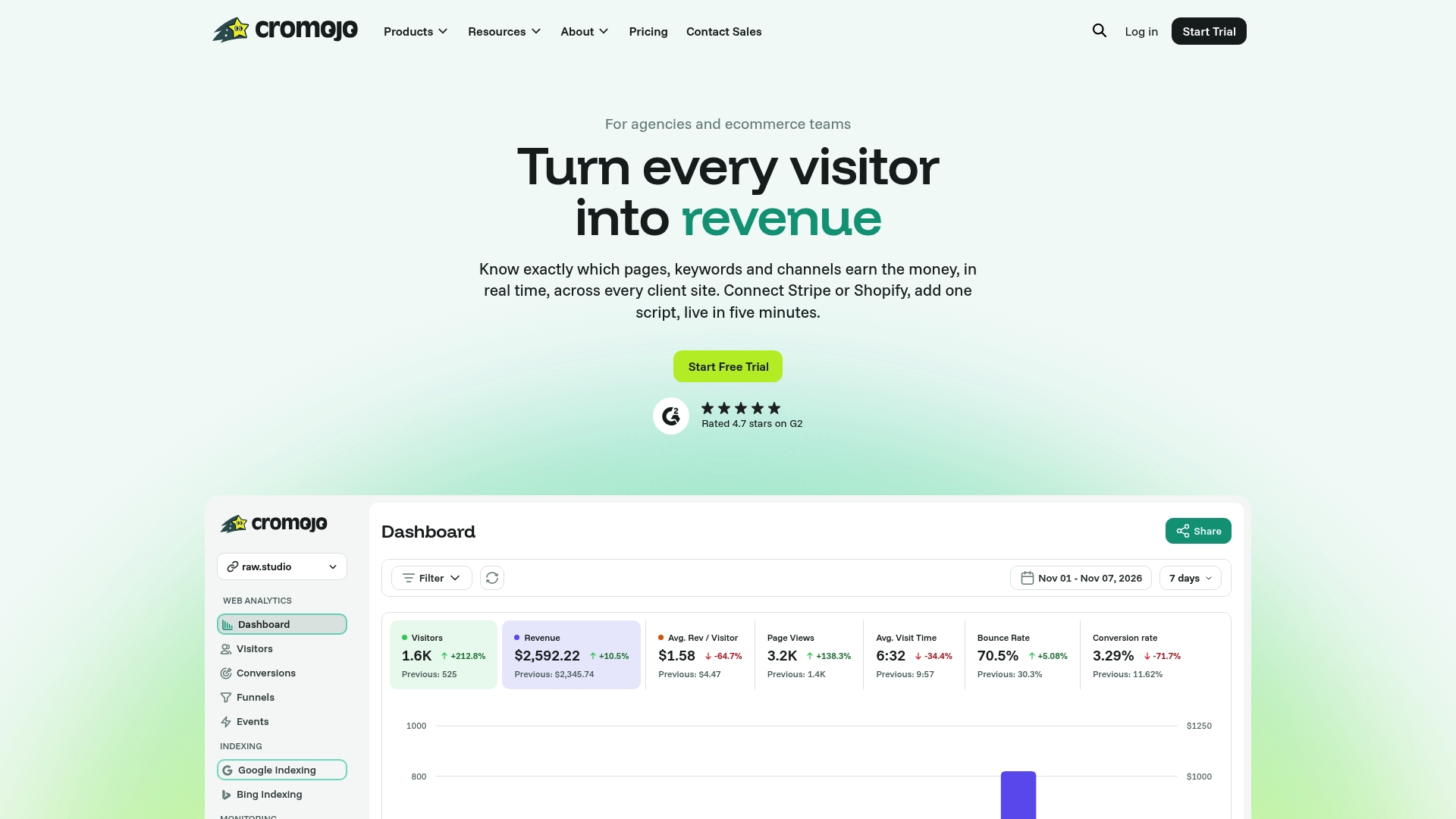
Cromojo pairs automated indexing hints with website and uptime monitoring, so a 5xx error or a stale crawl date triggers an alert before it costs you a wasted indexing request. Bulk URL submission covers Google, Bing, Yandex, and AI search in one pass, instead of clicking through URL Inspection for every changed page. For ecommerce teams and agencies, that combination means less time chasing indexing problems by hand and more confidence that a recrawl request lands on a page Google can actually fetch cleanly. If you're managing revenue-driving pages that need to stay visible, start a Cromojo trial and connect your first site to see the indexing and monitoring dashboard in action.