


Most modern Shopify themes already output product structured data, but that does not mean it is correct. Open a product page, run it through Google's Rich Results Test, and confirm that the Offer price, priceCurrency, and availability appear in the initial HTML and match what shoppers see. Fix any mismatch before you expect rich results.
How does Shopify output product structured data?
Shopify does a lot of the work for you. Its structured_data filter emits a Product object for a product with no variants and a ProductGroup object for a product that has variants. Shopify added ProductGroup support on July 16, 2024, so any custom snippet written before then may now sit beside a different default output than the one it was built around.
That default behavior is good news. For most stores, a current theme that calls the filter produces valid, reasonably complete markup with no manual JSON writing. The catch is that the filter only helps when you use it as the single source. Many stores end up with multiple blocks of JSON-LD on the same page: one from the theme, one from a reviews app, and one from a snippet a developer pasted in years ago. Search engines then see competing descriptions of the same product, with prices or availability that may disagree.
View the product page source and search for application/ld+json. Read each block and identify its owner. Multiple blocks are not automatically an error: ProductGroup, its variant Products, reviews, Organization and BreadcrumbList can coexist. Resolve conflicting descriptions of the same entity, and preserve legitimate linked data rather than deleting blocks solely because there is more than one.
Shopify documents that its product-level json filter omits inventory_quantity and inventory_policy for stores created after December 5, 2017. This is filter behaviour, not a general prohibition on publishing stock information. For product offers, use accurate variant-level availability; raw inventory counts are usually unnecessary.
A few practical points follow from this:
- If your theme calls the structured_data filter, treat that output as your baseline and audit what else is injecting JSON-LD.
- If you rely on an older custom snippet, compare it with the filter's output. The filter may now be more correct than your handwritten version, especially for variants.
- If an app adds its own schema, decide whether it replaces the theme output or duplicates it. It should never do both.
Think of this section as your inventory of what already exists. Until you know which blocks are on the page and who owns them, any change you make is a guess. Once you have the list, the Google requirements in the next section tell you which properties actually matter.
What does Google require for product snippets and merchant listings?
Google separates two experiences, and the difference changes what you should include.
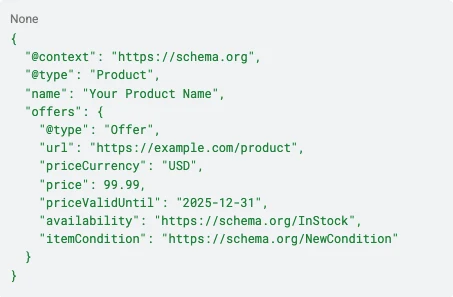
For product snippets, Google Search Central says the markup needs the product name plus at least one of review, aggregateRating, or offers. For an ecommerce page, offers is the practical route, because it describes how the product is actually sold. Google also notes that an offers-only implementation can trigger a warning about missing review or aggregateRating properties, even though offers satisfies the minimum eligibility requirement. A warning is not an error. Your page can still qualify.
Merchant listings have their own requirements. Include the product name, image and an Offer with the required price information, and check Google's current property requirements. Price, currency and availability should agree with the visible offer and relevant Merchant Center data. Shipping and return policies can add useful detail where applicable.
Here is how the two compare in plain terms:
Format and placement matter just as much as the properties. Google's Merchant Center help recommends JSON-LD in the initial HTML, with a Product object containing a nested Offer. If your schema only appears after JavaScript runs, you are relying on a rendering step you do not control. Put it in the server-rendered markup.
If you use Merchant Center, particularly with automatic item updates, Google identifies price, priceCurrency, availability, and condition as the values that must match your current product data and feed. A price in the page schema that differs from the price in the feed is exactly the sort of conflict that can cost you eligibility.
There is also a trust rule underneath all of this. Google's structured data policies warn that deceptive, hidden, or disconnected markup can be ignored or treated as spam. Do not add review stars, ratings, prices, or shipping values only to qualify for a snippet. Everything in your markup should be something a shopper can see on the page. The practical test is simple: if a value is in your JSON-LD, a visitor should be able to find it on the product page.
The reference for what each property means is the Product type on Schema.org. It lists name, image, brand, category, identifiers such as SKU, GTIN, and MPN, offers, reviews, and ratings. Use only the properties for which you have accurate, visible values. A shorter, truthful markup beats a long one that drifts out of date.
How do you add or fix product schema in Shopify, step by step?
This is the hands-on part. The goal is one clean source of product schema, placed in the initial HTML, with correct Offers for every variant.
Step 1: Audit what is already there. View source on a product page and list every JSON-LD block. Note which come from the theme, which from apps, and which from custom code. If you want a second set of eyes on page-level gaps, this audit of top Shopify product pages walks through common structured data misses on real stores.
Step 2: Choose a clear owner. Decide which theme snippet or app owns the main product graph. Disable conflicting duplicate output while preserving compatible review and variant data. Document where the graph is maintained.
Step 3: Start from the structured_data filter. In most cases the cleanest implementation is one line of Liquid inside a JSON-LD script tag in the product template or an included snippet.
Placed in server-rendered Liquid, this lands in the initial HTML, which is what Google recommends.
Step 4: Customize only when you must. If you need properties the filter does not provide, build a product-schema.liquid snippet and include it with {% render 'product-schema' %}. Construct a Product (or ProductGroup) with nested Offer objects. Use the official variant examples as your reference.
For custom output, follow the official ProductGroup examples and use machine-readable prices that remain correct for your currency and market. Do not strip punctuation from a locally formatted money string: decimal and grouping separators vary. Test the generated JSON and each variant before deployment.
Test custom output in every supported currency and market before publishing.
Step 5: Handle variants correctly. Model the ProductGroup and its variant Products consistently, using hasVariant or isVariantOf as appropriate. Each variant Product should have its own accurate Offer and URL. Merely assigning an Offer an @id does not establish variant grouping. Follow Google's variant examples for your single-page or multi-page setup.

Step 6: Match your feed. If you opt into Merchant Center or automatic item updates, make sure price, priceCurrency, availability, and condition line up with your feed values.
A few implementation rules to keep in view:
- Put JSON-LD in the initial HTML, not in a script that builds it after load.
- Include price, priceCurrency (an ISO 4217 code such as USD or EUR), availability, url, and an
@idon each Offer. - Use UnitPriceSpecification when pricing is more complex than a single flat amount.
- Use accurate variant-level availability. Shopify filter omissions are not a date-based ban on publishing stock counts.
- Remove duplicate schema from apps and theme before adding anything new.
- Maintain a coherent product graph. A ProductGroup with multiple variant Products is legitimate; remove conflicting duplicate entities, not valid variants.
Pro Tip:Make your product-schema snippet the only place schema is edited, and leave a Liquid comment at the top naming it as the single source of truth. That one line saves hours when a new app or developer arrives.
How do you test and validate product schema?
Testing is where most problems surface, so do it before and after every change. Work through the checks below in order.
- Run the Rich Results Test.Google recommends the Rich Results Test to preview which Google rich results a page's structured data can generate. Test a live product URL, not just a code snippet, so you see what Google actually receives.
- Run the Schema Markup Validator. Use Validator for general schema.org validity. It checks that your markup is well formed even where Google does not show a rich result for it.
- Check the initial HTML. View the page source and confirm the JSON-LD is present there, not only after JavaScript runs. If you cannot find it in source view, it is being injected late.
- Test variant URLs. Open a variant-specific URL and confirm the Offer
@id, price, priceCurrency, and availability match what that variant shows on screen. A variant that sells out should flip to out of stock in the markup. - Compare against Merchant Center. If you use a feed, check that price, currency, availability, and condition agree with the schema on the page.
- Watch Search Console. Use the enhancement and structured data reports to monitor warnings and errors, and to catch a trend of pages losing eligibility after a theme update.
Read results with the right expectations. A warning about missing aggregateRating on an offers-only page is normal and does not block a snippet. An error about a missing price or availability does matter. Fix errors first, then decide which warnings are worth the effort.
Run these tests on a representative sample, not one page. Pick a simple product, a product with several variants, a sold-out item, and a discounted item. Those four cases expose most of the logic flaws in a template.
What are the most common product schema pitfalls?
Most failures come from a short list of mistakes, and each has a quick fix.
- Duplicate JSON-LD. A theme plus one or more apps often output competing Product blocks. Find them in source view, remove the extras, and keep one canonical snippet.
- Price or availability mismatches. Reconcile the page, markup and Merchant Center feed at the source. Automatic item updates do not replace accurate product data.
- Use accurate variant-level availability. Shopify filter omissions are not a date-based ban on publishing stock counts.
- Markup that is not on the page. Adding ratings or prices a shopper cannot see is deceptive markup, and Google can ignore it or treat it as spam.
- Wrong currency or price format. Use ISO 4217 codes for priceCurrency, and keep numeric price fields in the form schema.org expects. For complex pricing, use a priceSpecification.
Variants deserve special attention. A common error is a ProductGroup whose child Offers all share one price or one availability value, so a sold-out size still reads as in stock. Test each variant, not just the default.
Pro Tip:After every theme update, rerun the Rich Results Test on one simple product and one multi-variant product. Theme updates are the most common moment a working snippet quietly breaks.
How does automated monitoring keep schema accurate?
Product schema is not a set-and-forget task. Prices change, items sell out, themes update, and apps get installed. Each of those can shift the values in your markup, and Google expects structured data to reflect the real offer. As Google's guidance frames it, consistency among visible page content, structured data, Merchant Center data, and actual price or availability is the priority.
That is the problem our tools address. Our Website Monitoring watches site health. When a page starts misbehaving, we flag it so you can fix it before the damage compounds.
After correcting a product page, use the appropriate search-engine submission tools and check Search Console. Submission does not guarantee Google crawling, indexing, timing or rich-result display. See our Automated Indexing feature for supported workflows.
Because we also track which pages drive revenue, you can sort your fix list by impact. A schema warning on a product that earns steady sales deserves attention before one on a page nobody visits. That ordering turns a long audit into a short, sensible queue.
What should you fix first?
My view is that most stores overthink schema and underinvest in accuracy. The temptation is to chase every optional property, such as brand, GTIN, color, and size. Those can help, but they do nothing if the Offer underneath is wrong.
So start with the Offer. Get price, currency, and availability correct and visible in the initial HTML. That single fix unlocks most product snippets and removes the biggest source of Merchant Center conflicts. Next, check variant and ProductGroup correctness, so you are not publishing duplicated or incorrect offers for sizes and colors. Only after that does it make sense to enrich the markup with extra properties.
Last, set up monitoring and a simple reindex routine once the fixes are stable. The order matters because every later step depends on the earlier one. Enrichment on top of a broken Offer is wasted effort, and monitoring a markup you have not cleaned only tells you what you already know is broken.
Keep your product schema accurate and your best pages visible
Fixing schema once is the easy part. Keeping it right as prices, stock, and themes change is where stores slip, and where we can take work off your plate.
Use Automated Indexing, Website Monitoring and Revenue Analytics alongside dedicated structured-data validation. Check supported integrations and plan features for your store. General site monitoring does not replace testing the product graph, and valid markup does not guarantee a rich result.
Build a repeatable validation routine and prioritise the pages that matter to your store. Compare current options on our pricing page and choose the plan that fits your workflow.