


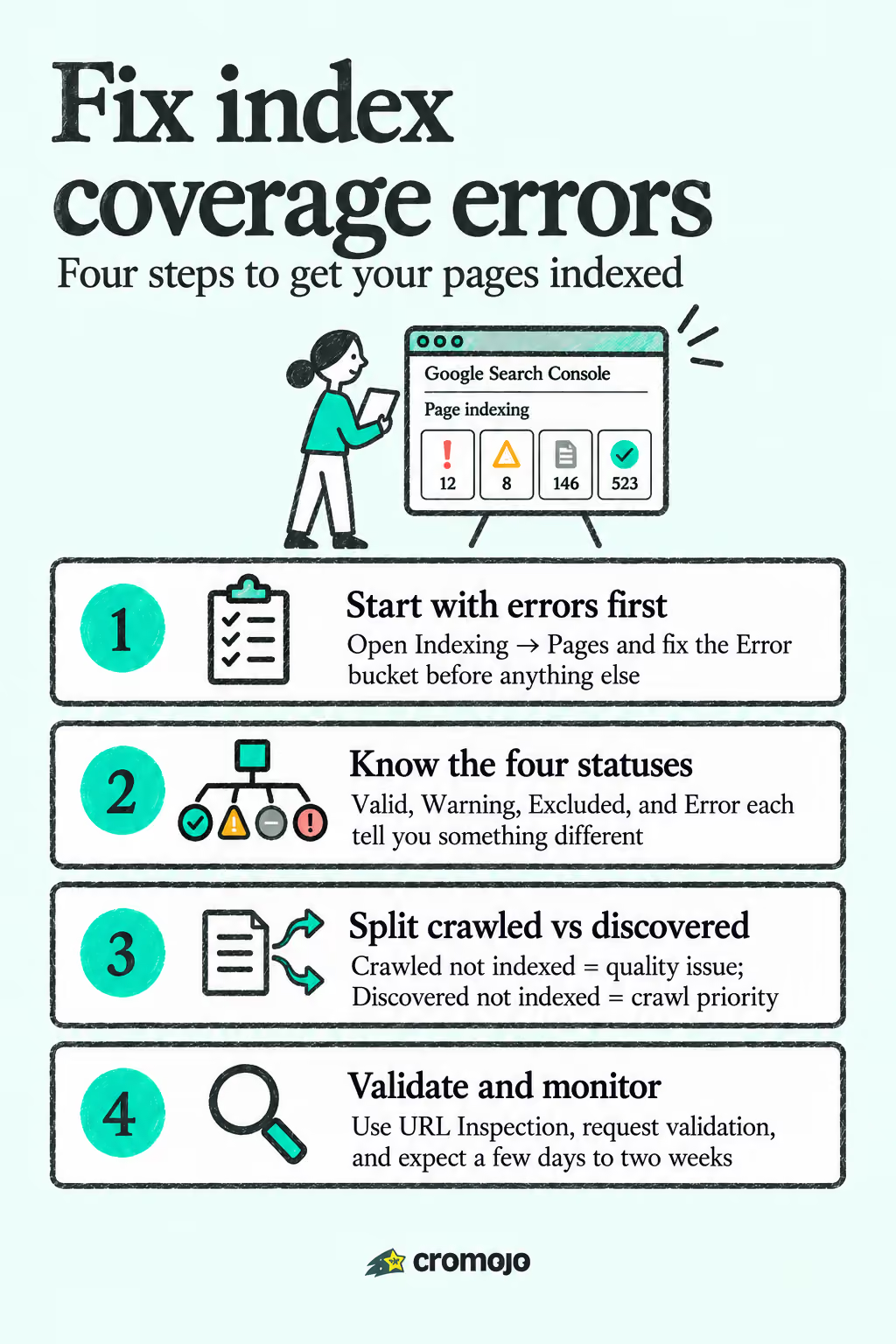
Index coverage errors are the Page Indexing report's way of telling you Google either couldn't or wouldn't add a URL to its index. The fastest path to fixing them is opening Search Console, going to Indexing → Pages, and triaging everything in the Error bucket first, since those are outright failures rather than judgment calls. Expect validation to take anywhere from a few days to two weeks once you request a fix, so plan your reporting cycle around that lag rather than checking hourly.
What the Page Indexing Report Shows and When to Use It
The Page Indexing report (still called the Coverage report by longtime users) is Google's breakdown of every URL it knows about on your site, sorted into four buckets. It answers one question: what happened when Google tried to crawl and index each page it found?
Google groups every discovered URL into one of four statuses:
- Valid - the page is indexed and eligible to show in search results.
- Valid with warnings - the page is indexed, but something about it (usually a robots.txt conflict) needs a second look.
- Excluded - Google deliberately left the page out of the index, often on purpose (think canonical duplicates or redirects).
- Error - Google tried to index the page and hit a wall it couldn't work around.
Google itself recommends a lighter touch for small sites. If your site has fewer than roughly 500 pages, a quick site:yourdomain.com search in Google often tells you more, faster, than digging through the full report. Reserve the deep Page Indexing dive for larger catalogs, migrations, or when something you know is live isn't showing up in search.
The report doesn't operate alone. Pair it with the URL Inspection tool to check any single URL's live status, and cross-reference the Performance report to see whether pages that are technically "Valid" are actually earning impressions. A page can sit in the Valid bucket and still generate zero clicks, which is a different problem than an indexing error but often gets confused with one.
Pro Tip: Before you touch a single filter in the Coverage report, run a site: search for your homepage and your top three revenue pages. If those don't show up, you have a bigger emergency than anything the report will tell you, and it's worth checking robots.txt immediately.
How to Read the Statuses and Spot the Common Errors
Each of the four statuses carries a distinct implication for what you should do next, and mixing them up wastes time.
Error means Google attempted to index the URL and failed for a structural reason, usually something you control directly, like a server response or a misconfigured directive. Valid means the page is live and indexed, full stop. Valid with warnings means the page made it into the index despite a conflict, most commonly a robots.txt block that Google decided to ignore because other signals (like external links) told it the page mattered anyway. Excluded is the largest and most misunderstood bucket. It covers everything from intentional redirects to duplicate content to pages Google simply hasn't gotten around to.
The error types you'll run into most often, based on how Google and independent diagnostic guides categorize them, are:
- Server errors (5xx) - your host returned an error when Googlebot requested the page, often during traffic spikes or maintenance windows.
- Redirect errors - Google followed a redirect chain that looped, dead-ended, or exceeded its hop limit.
- Blocked by robots.txt - your robots file told Googlebot not to crawl the URL.
- Submitted URL marked "noindex" - you asked Google to index a page in your sitemap, but a noindex tag on the page contradicts that request.
- 404 and soft 404 errors - the page returns a not-found status, or returns content so thin that Google treats it as not-found even though the server says 200 OK.
- Crawl anomaly - a catch-all for unexpected problems during the crawl attempt that don't fit a cleaner category.
Inside Excluded, a few subtypes deserve special attention because they quietly hide real problems: "Duplicate without user-selected canonical" and "Alternate page with proper canonical tag" often mean your canonicalization strategy needs cleanup, not just acknowledgment. "Crawled - currently not indexed" and "Discovered - currently not indexed" look similar but demand completely different fixes, which is important enough to cover on its own next. Most other Excluded reasons, like "Page with redirect" or "Blocked by page removal tool," are working as intended and need no action at all.
One subtlety trips up even experienced SEOs: a robots.txt block doesn't guarantee a page stays out of the index. If enough external sites link to a blocked URL, Google can still index it based on that link data alone, showing up as "Valid with warnings" rather than fully excluded. If you actually want a page gone from search results, a noindex tag is the more reliable tool, because robots.txt only stops crawling, not necessarily indexing.
Crawled Not Indexed vs. Discovered Not Indexed: Get This Wrong and You Waste Weeks
These two Excluded statuses are the single most confused pair in the entire report, and mixing up their fixes is the most common way SEO teams burn a month chasing the wrong problem.
"Crawled - currently not indexed" means Google visited the page, read the content, and decided against indexing it. This is a quality judgment. Google saw what you have and passed. "Discovered - currently not indexed" means Google knows the URL exists (usually from a sitemap or internal link) but hasn't crawled it yet at all. This is a prioritization problem, not a quality one. Google simply hasn't gotten there.
Here's how to tell which one you're dealing with and what to do about each:
- Check the status in the Page Indexing report first. Filter by Excluded and look at the specific reason listed for each URL cluster; the two statuses are labeled distinctly and won't be merged together.
- Run URL Inspection on a sample of affected pages. If the tool shows a crawl date and a rendered screenshot, Google has visited and rejected the page: that's the "Crawled" case. If it shows "URL is not on Google" with no crawl history, you're in "Discovered" territory.
- For "Crawled - currently not indexed," fix the content itself. Improve depth and originality, consolidate thin pages that duplicate each other, strengthen internal links pointing to the page, and reinforce experience and expertise signals Google can verify (author bios, citations, original data). This is a quality fix, and confusing it with a crawl problem is the biggest time waster in the whole troubleshooting process.
- For "Discovered - currently not indexed," fix crawl priority instead. Add the page to your XML sitemap if it isn't there, link to it from higher-authority pages on your site, and trim your sitemap of low-value URLs that are competing for the same crawl budget.
- If Discovered backlogs are large and persistent across a big site, check your Crawl Stats report. A slow average server response time or a high share of 5xx responses can throttle how much Googlebot is willing to crawl in a given period, which compounds the backlog regardless of how good your content is.
Improving content on a page Google hasn't even crawled yet changes nothing. Diagnose which pipeline stage failed before you touch a single word of copy.
The Triage Workflow: What to Check First, Second, and Third
Treat the Page Indexing report like a triage nurse treats an emergency room: fix what's actively broken before you spend time on what's merely suboptimal.
Step 1: Filter to "All submitted pages" and sort by Error. Anything in the Error bucket represents pages you explicitly wanted indexed (they're in your sitemap) that Google flatly couldn't process. These get fixed first because they're unambiguous failures with a clear cause, unlike Excluded pages, which often require judgment calls about intent.
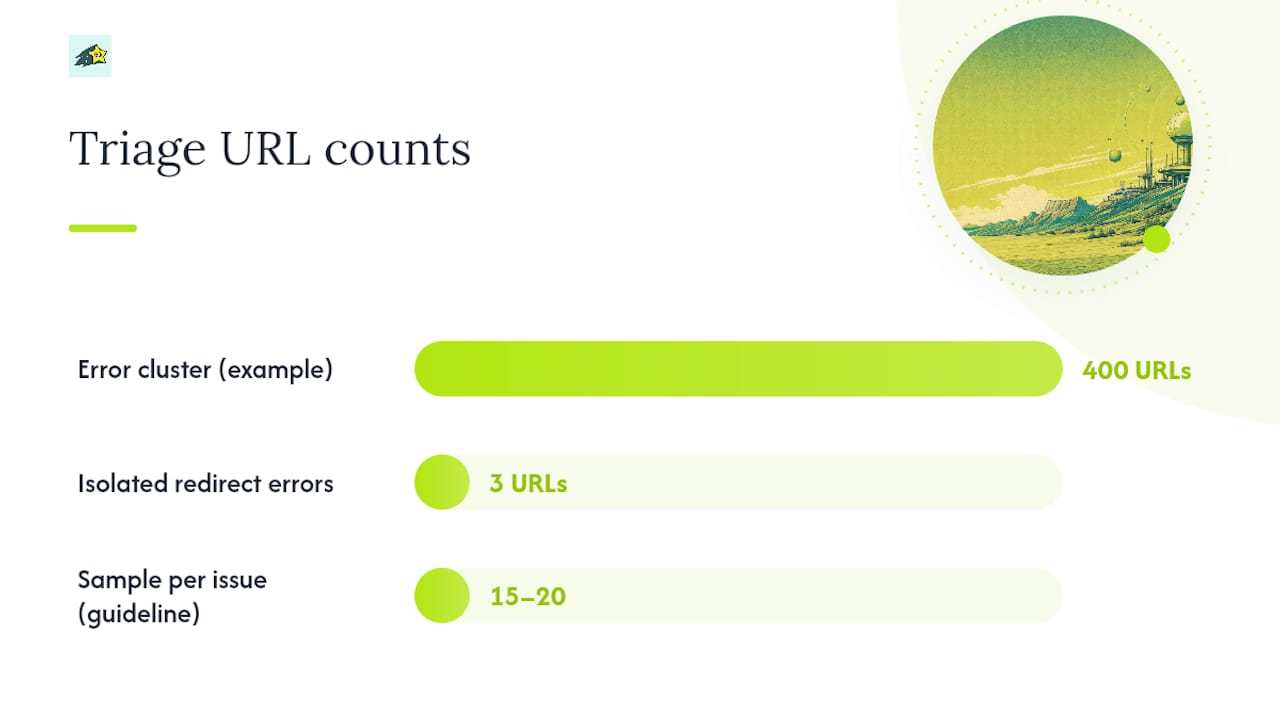
Step 2: Rank Error types by page count, not alphabetically. A cluster of 400 URLs failing on server errors matters more right now than three isolated redirect errors, even though both need attention eventually. Work the biggest clusters down first.
Step 3: Move to Excluded and look specifically at "Crawled - currently not indexed" and "Discovered - currently not indexed." These two, as covered above, require opposite remediation strategies, so separate them before doing anything else.
Step 4: Spot-check everything else in Excluded for anything unexpected. Most Excluded reasons (redirects, duplicates with a proper canonical) are fine as-is. You're scanning for surprises, like important pages accidentally caught in a duplicate cluster.
Here's the tool-by-tool checklist to run during that process:
- URL Inspection tool. Paste in any affected URL to see its last crawl date, indexing status, and any detected canonical. This is your first stop for any individual page you're unsure about.
- Test Live URL button (inside URL Inspection). This forces a real-time check against the live version of the page, independent of whatever Google has cached. Use it after making a fix, before you bother requesting indexing.
- Robots.txt Tester. Confirm whether a specific URL pattern is actually blocked, and by which rule. Robots.txt syntax is unforgiving; a single misplaced wildcard can block an entire directory you never intended to touch.
- Server log analysis. Pull raw access logs (or use your hosting dashboard) to see exactly what status code Googlebot received on its last several visits. This catches intermittent 5xx errors that a single manual page-load won't reproduce.
- A redirect chain checker. Tools like Screaming Frog or a browser extension that traces redirect hops will show you if a URL bounces through three or four redirects before landing, which is often the real cause behind "redirect error" flags.
Pro Tip: Don't try to inspect every URL in a large Excluded cluster individually. Sample 15 to 20 URLs per issue type, confirm the pattern holds across the sample, then fix the systemic cause (a template, a plugin setting, a sitemap rule) rather than editing each page by hand.
For scale, this sampling approach matters more than it might seem. If a cluster contains thousands of URLs generated by the same faceted navigation template, inspecting all individually is inefficient. Sample 20, confirm they share the same root cause, then fix the template or the sitemap logic that's generating them. Practitioners who work through Coverage report backlogs regularly recommend exactly this cadence: fix the highest severity Error pages first, address the top Excluded clusters affecting pages you actually want indexed, and clear a reasonable backlog within a few weeks rather than trying to force everything in one sitting.
Escalate to a full technical audit when the sampling reveals the problem isn't isolated to one template or plugin. If server errors are showing up across unrelated page types, or if noindex tags are appearing on pages where no one remembers adding them, you're likely looking at a site-wide misconfiguration, not a page-level bug.
Step-by-Step Fixes for the Most Common Errors
Each error type has a distinct fix and a distinct way to confirm the fix actually worked. Here's the breakdown by type.
Server errors (5xx). Start by checking your hosting dashboard or uptime monitor for patterns. Are the errors clustered around specific times of day, tied to traffic spikes, or constant? Check your server error logs directly for the exact failure (timeout, memory limit, database connection drop). Review your caching layer, since a misconfigured cache can serve stale error pages to crawlers even when the site loads fine for you. Once you've resolved the underlying cause, run Test Live URL in URL Inspection to confirm the page now returns a clean 200 status, then request indexing.
Redirect errors. Map out the actual chain a URL travels through before landing on its final destination. Anything beyond a single hop is worth shortening. Confirm you're using 301 redirects for anything permanent and reserve 302s for genuinely temporary situations, since Google treats the two differently for indexing purposes. After fixing the chain, test the original URL directly in your browser with redirects visible (most browser dev tools show this) to confirm it now resolves in one hop.
- Robots.txt or noindex conflicts. First, figure out whether the block is intentional. Check both the robots.txt file itself and the page's meta robots tag or X-Robots-Tag HTTP header, since a noindex directive can hide in either place.
- If the block was accidental, remove the disallow rule or the noindex tag, whichever applies.
- If the block was intentional, and you genuinely don't want the page indexed, leave the noindex tag in place but make sure the URL isn't also sitting in your sitemap, since that sends Google a contradictory signal.
404, soft 404, and access errors. Decide the intent behind the missing page before choosing a fix. If content should exist and simply moved, restore it or add a 301 redirect to its new location. If the page is genuinely gone and should stay gone, let the 404 stand and remove the URL from your sitemap so Google stops expecting it. If a page is returning content but Google is calling it a soft 404, check whether it has genuinely thin or near-duplicate content, since that's usually the real trigger.
Duplicate and canonical issues. Compare your user-declared canonical tag against Google's selected canonical, both visible in URL Inspection. When they disagree, Google is telling you it doesn't trust your canonical signal, often because internal links point to multiple versions of the same content. Consolidate duplicate pages where possible, or strengthen your canonical tag consistency, particularly on faceted or parameter-driven URLs, where the right long-term fix is consolidation rather than trying to individually improve thousands of near-identical pages.
Indexed but blocked, or indexed without content. If a page is technically indexed despite a robots.txt block, decide whether that's acceptable. If it's a page you want fully crawlable, remove the block. If it's a page that shouldn't be in search at all, switch to a noindex tag instead, since robots.txt alone won't guarantee removal.
Pro Tip: Check for a global "discourage search engines" toggle before you go hunting for individual page problems. WordPress and several other CMS platforms have a single site-wide setting that quietly adds a noindex tag to every page, often left on from a staging environment and forgotten during launch.
Validating Fixes and Setting Realistic Timelines
Fixing the underlying cause is only half the job. Google needs to re-crawl and re-evaluate each URL before the report reflects reality, and that takes time you should plan for rather than fight.
Two tools handle validation differently:
- URL Inspection's Test Live URL gives you an immediate read on the current state of a single page, independent of Google's index. Use this right after making a fix to confirm the technical problem is actually resolved.
- Validate Fix, triggered from inside an error type in the Coverage report, tells Google to re-crawl a sample of the affected URLs and check whether the issue is gone.
Validate Fix isn't instant. Google's own guidance and independent tracking suggest a typical validation window of about two weeks, though individual URLs can clear faster and full report-wide reflection sometimes stretches toward three or four weeks on larger sites. Don't panic if the count doesn't drop the next morning.
While you wait, monitor two things in parallel. Watch the Performance report for the affected pages to see if impressions start climbing again, which is often a leading indicator that shows up before the Coverage report fully updates. And recheck the Error count itself weekly rather than daily. Checking too often just shows you the same stale number and adds stress without adding information.
Preventing the Next Round of Coverage Errors
A clean sitemap is the cheapest insurance you can buy against future coverage errors. Submit only canonical URLs, strip out parameterized duplicates, and update the sitemap whenever you restructure a section of the site, since a sitemap full of duplicate or outdated URLs actively dilutes the crawl priority of the pages you actually care about.
Beyond the sitemap, build a recurring check into your workflow rather than treating this as a one-time cleanup:
- Set a monitoring cadence that matches your site's size. Large or fast-changing ecommerce catalogs benefit from daily automated alerts; smaller brochure sites can usually get by with a weekly manual glance at the Error count.
- Audit CMS-level settings quarterly. Global noindex toggles, hidden X-Robots-Tag headers set at the server level, and plugin updates that silently change robots.txt are common, quiet sources of regression.
- Review internal linking and canonical strategy whenever you publish a content cluster. New pages that aren't linked from anywhere discoverable tend to fall into "Discovered - currently not indexed" and sit there indefinitely.
- Consolidate thin or near-duplicate pages as you find them rather than letting index bloat accumulate across product variants, tag pages, or paginated archives.
None of this eliminates coverage errors entirely. It shrinks the backlog you're dealing with at any given time, which is the realistic goal.
How Automated Monitoring Cuts Triage Time
Manually rechecking the Page Indexing report every few days works fine until your site grows past a few hundred pages, at which point the manual approach starts costing real hours every week. Site monitoring and SEO health checks can run in the background, flagging server errors, robots.txt changes, and indexing regressions as they happen rather than waiting for you to notice them in a quarterly review.
Automated website indexing and bulk URL submission handle the repetitive part of the fix cycle: once you've resolved a server error or removed an accidental noindex tag, you can push the affected URLs back into the indexing queue in bulk instead of requesting each one individually through Search Console. Indexing notifications can inform you when a submitted page gets picked up, which shortens the guesswork during the validation window.
For teams managing dozens or hundreds of client sites, that combination, monitoring plus automated submission, turns what used to be a recurring manual audit into something closer to a standing alert system.
What I'd Prioritize First
If you take one thing from this playbook, take the Crawled versus Discovered distinction. It's the mistake I see repeated most, and it's expensive: teams spend weeks rewriting content for pages Google never even crawled, when the actual fix was a sitemap entry and an internal link.
My three quick takeaways: fix Errors before Excluded, always confirm which "not indexed" status you're actually looking at, and never trust the Coverage report's timing for anything urgent, since URL Inspection's live test is faster and more honest in the moment. The audit mistake to avoid is treating every Excluded URL as a problem. Most of them are working exactly as intended.
For cadence, weekly triage suits most mid-sized sites; large or fast-moving ecommerce catalogs need daily alerts, because backlogs compound quickly at scale. Validate every fix you make and track your indexed count over time. That number moving in the right direction is the only proof that actually matters.
- Philippe
Fix Errors Faster With Automated Monitoring and Bulk Reindexing
There are practical alternatives to manually rechecking Search Console every week: some platforms watch your site continuously and notify you the moment a server error, an accidental noindex tag, or a robots.txt regression shows up, instead of leaving you to discover it during your next scheduled audit.
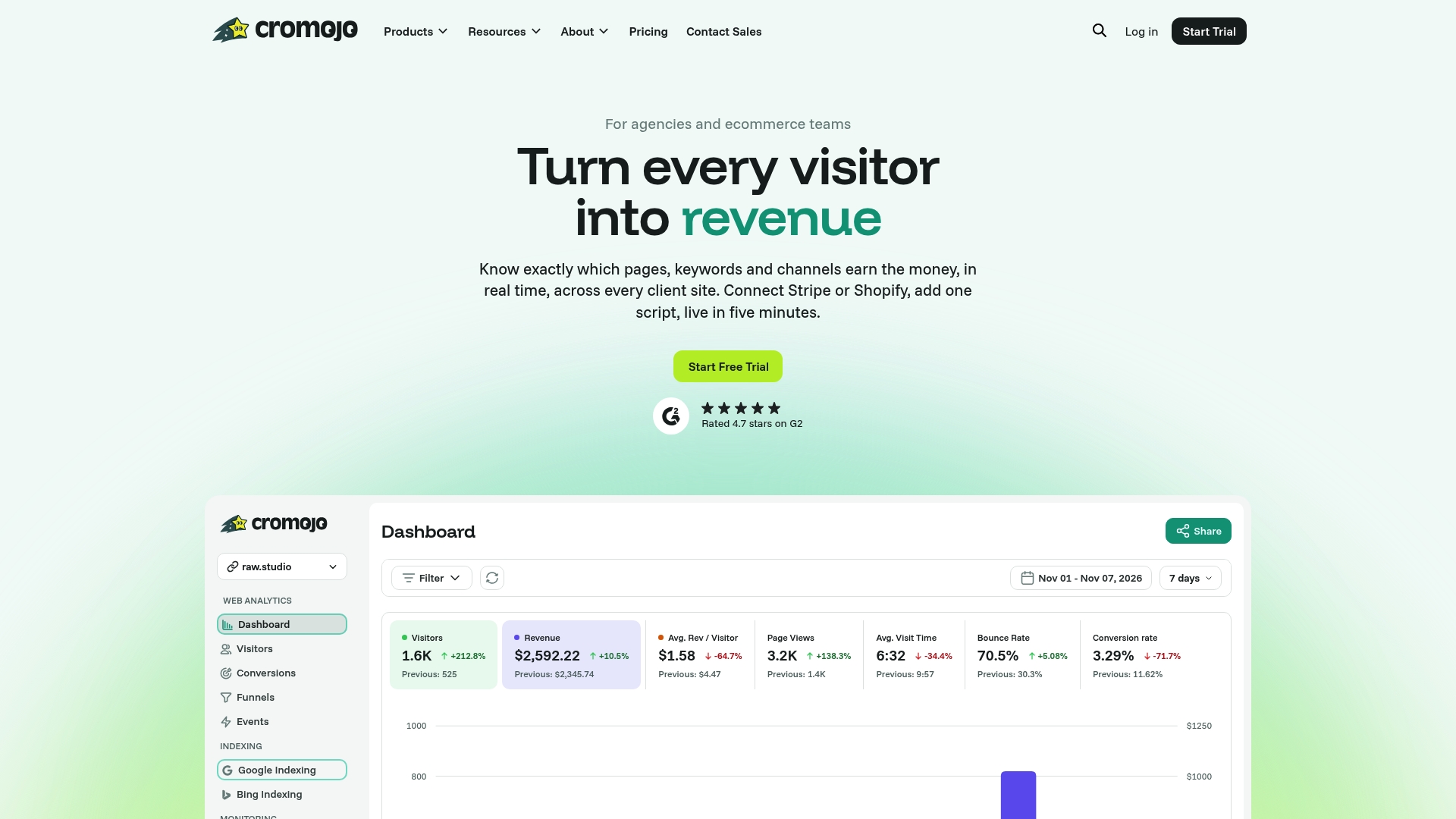
That matters most for the two problems this playbook keeps circling back to: slow validation cycles and manual URL checks that eat up an afternoon on a large site. Automated website indexing and bulk URL submission let you push a batch of fixed pages back into the queue at once rather than requesting each one by hand, with indexing notifications to tell you when Google picks them up. Site monitoring flags the server errors and downtime that quietly throttle your crawl budget before they turn into a Coverage report backlog. If uptime and 5xx errors are a recurring worry on your site, the website monitoring feature is built specifically for catching those before they show up as an Error cluster. Start a trial and connect your Search Console property to see your current Error and Excluded counts inside a dashboard today.