


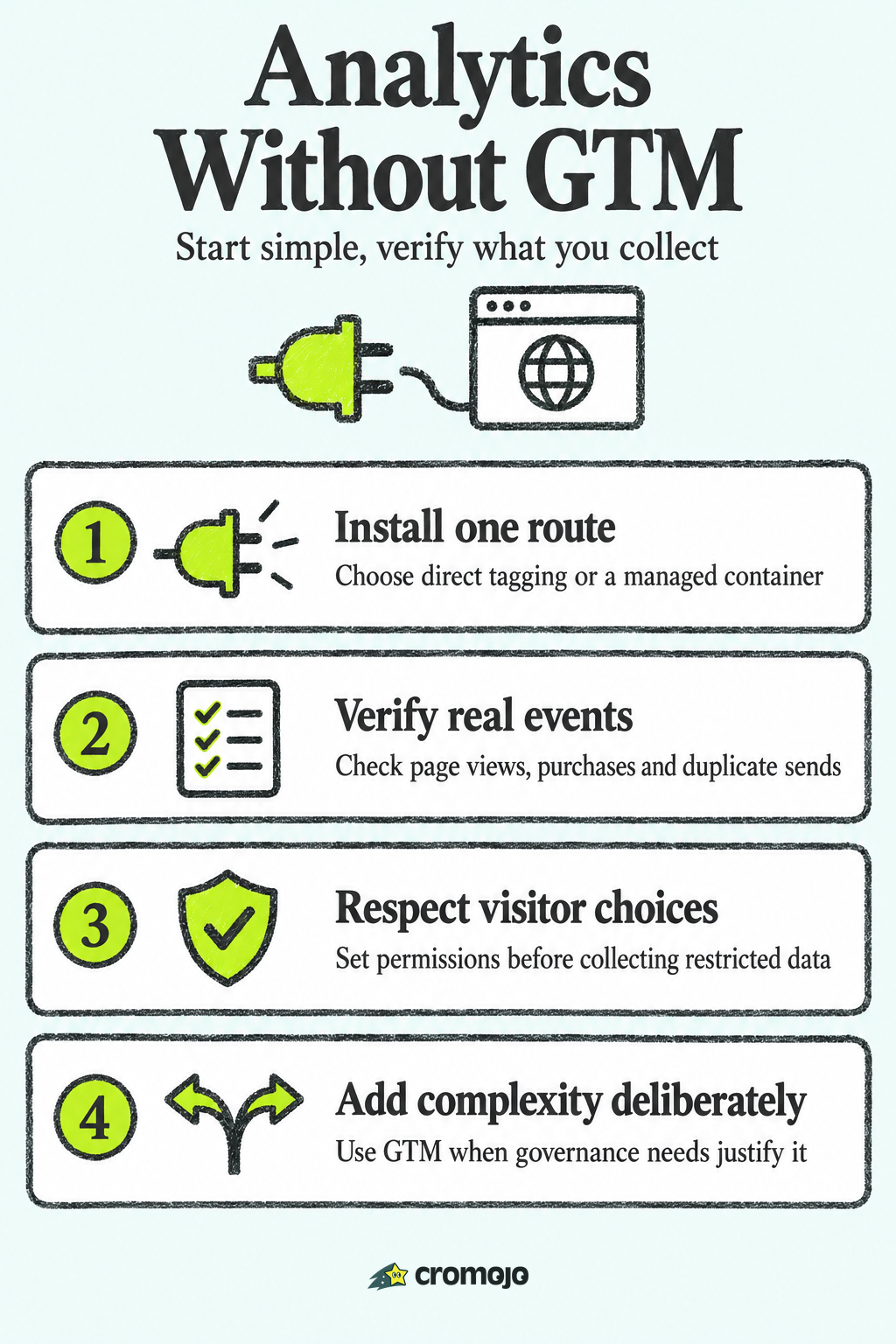
Yes, you can run analytics without Google Tag Manager (GTM). Google's own documentation says you can send data to Google Analytics 4 with the Google tag (gtag.js) alone, and plenty of small sites never need anything more. Other analytics tools work the same way: you paste one lightweight script into your site and you are measuring.
This guide covers when skipping GTM is the right call, how to set it up without breaking your data, and which mistakes to avoid. It also covers when GTM starts to earn its place.
What GTM actually does (and what it doesn't)
People often treat GTM and Google Analytics as the same thing. They are not.
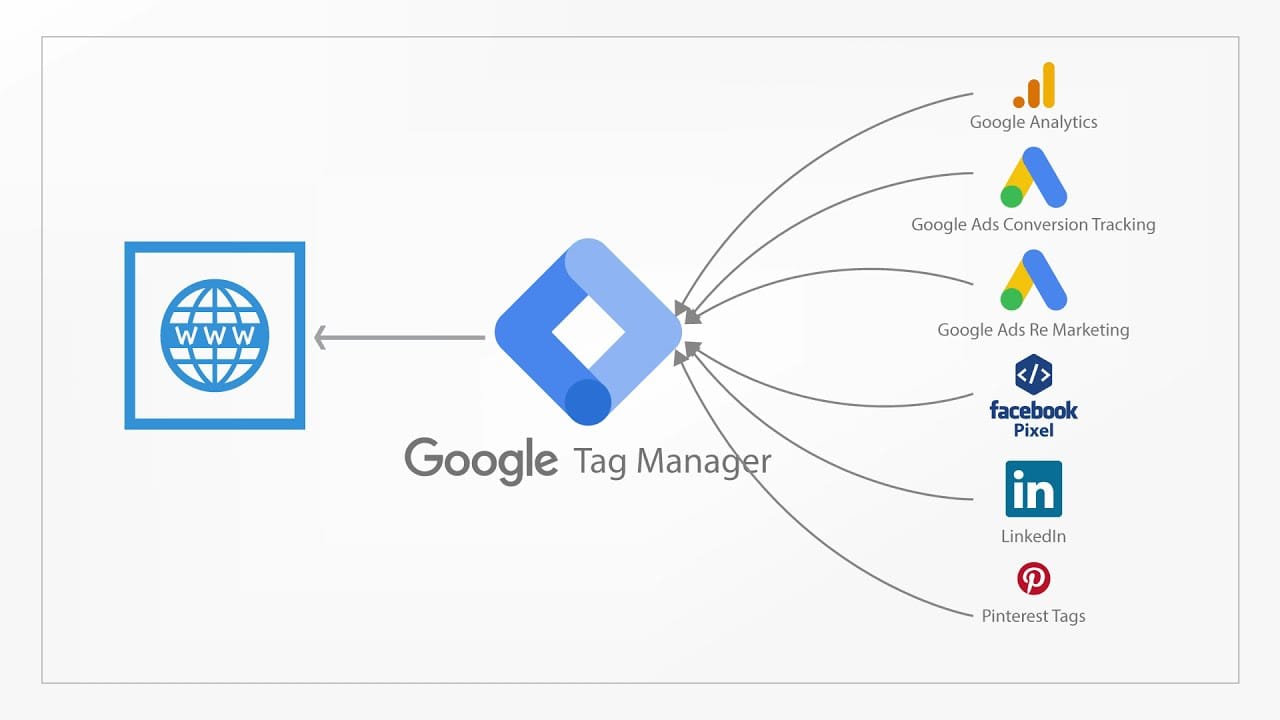
Google Analytics 4 (GA4) is the reporting tool. It collects events and turns them into reports. Google Tag Manager is a container that holds tags, which are small pieces of code from Google or other vendors, and fires them under rules you define. GTM does not report anything on its own.

That is why the question "analytics without GTM" is really "how do I get the tracking code onto my site without a container?" The answer is to place the tag directly in your pages.
The Google tag is, in Google's words, a single tag you add to your website to measure site and ads performance. It is what sends data to GA4 and Google Ads. You can load it by itself, or you can load it through GTM. Both routes end in the same place.
When you can safely skip GTM
Google's guidance is straightforward. Use the direct Google tag if you only need standard Google Analytics or Google Ads measurement and you do not have a dedicated developer. Direct implementation is also often preferred for a simple site or a single conversion goal, because it takes less technical overhead and maintenance than a full GTM container.
In practice, going without GTM makes sense when:
- You run a small store, a service site or a portfolio with a handful of goals.
- You have one analytics tool and perhaps one ad platform.
- Nobody on your team writes code regularly, and nobody wants to learn a container's triggers, variables and publishing workflow.
- You want fewer tracking components to document and maintain; measure performance rather than assuming direct tagging is faster.
The setup difference is small but real. Per Google, a direct gtag.js setup means adding one snippet to your header, while GTM means adding two separate snippets plus the container configuration behind them.
Ask yourself: how many tags do I actually run? If the honest answer is one or two, a container is probably more machinery than you need.
When GTM is worth adding
GTM helps manage third-party tags, triggers, variables and releases. It is useful when those workflows justify a container. A direct Google tag can also send data to a separately configured server-side container, as Google documents. Server-side tagging requires additional setup and hosting; it is not enabled merely by installing a web container.
Consider GTM if:
- Marketing needs a managed release workflow. GTM can reduce repeated site edits for supported tags, although custom events and data-layer work may still need a developer. CMS integrations can also provide direct installation without editing source files.
- You run many pixels: several ad platforms, heatmaps, chat widgets, affiliate scripts.
- You need controlled releases. Workspaces, preview mode and version history make it easier to test and roll back.
- Your tracking logic is complicated, such as firing events based on scroll depth, element visibility or data layer values.
You can migrate later. Inventory every existing route, including CMS integrations, hard-coded tags and containers. Test the replacement, coordinate the cutover and disable superseded sends so each intended event reaches the destination once. Keep a rollback plan and verify consent settings as well as event parameters.
Direct vs. GTM at a glance
How to set up GA4 without GTM
The goal is one intentional measurement route on every required page, configured for your permissions and events. Initialise the Google tag queue before calling custom events, and apply consent defaults before measurement commands where required. Test single-page-app navigation and checkout separately; a base snippet alone does not implement every purchase or custom event.
Step 1: Get your measurement ID
In GA4, create a property and a web data stream. You will get a measurement ID that starts with G-. Google Analytics will show you the snippet to install, with your ID already in it.
Step 2: Paste the snippet into your header
Use the current snippet and placement guidance from your GA4 web stream. The Google installation guide places it after the opening <head> tag on each page. On a CMS, use its supported integration or header field and first check whether another integration already installs the tag. Configure consent defaults before measurement commands where applicable.
Preserve the vendor-supported snippet rather than adding an integrity value copied from a different script version. A mismatched Subresource Integrity hash blocks a resource. If your security policy requires SRI, agree a supported loading approach with your technical team instead of assuming an arbitrary hash will work for a remotely updated loader.
Step 3: Add custom events below the base snippet
If you want to track a button click or a form submission, you can call gtag('event', ...) yourself. Order matters here. Google's help page says to add events anywhere below the Google tag snippet, because Google will not process events placed above it. The gtag function is not defined yet at that point.
For the full list of recommended and custom events, Google's developer guide on setting up events is the reference to keep open.
Step 4: Mark key events and verify
Mark relevant events as key events only after checking their meaning and trigger. Use Realtime and DebugView, with debug mode enabled for DebugView, to inspect names and parameters. Test a real journey, not just whether your visit appears. For purchases, validate transaction ID, value and currency, retries, refunds and checkout-domain handling.
Follow Google's event setup documentation for recommended names and parameters. Verify that form completion, rather than only a button click, triggers a lead event. Do not send personal information in event names, parameters or URLs.
Three mistakes that quietly ruin your data
1. Sending the same event twice. Direct tags and GTM can coexist for separate purposes. The problem is duplicate configuration or event sends to the same destination, including CMS integrations you forgot were active. Inspect the actual requests and triggers, then keep one intentional route for each event.
2. Calling events before initialisation. Initialise the queue and gtag function before custom calls. In dynamic applications, verify actual execution order, not just the visual order of code blocks.
3. Altering the supported loader without testing. An incorrect integrity hash or restrictive content-security policy can block the script or requests. Check the browser console and network activity when validating deployment.
After theme, integration or header changes, retest page views, consent states and key events. A successful Realtime visit does not prove that purchases, refunds or single-page-app navigation are correct.
Privacy and consent without a tag manager
Consent Mode supports direct gtag.js and GTM. It adjusts tag behaviour to the signals your consent solution supplies; it does not obtain consent for you. Set defaults before measurement commands, update them after a choice and test withdrawal. Basic and advanced implementations differ in whether tags load before permission; modelling availability and eligibility are not guaranteed.
If you serve visitors in regions with strict privacy rules, check the requirements for each region with a qualified privacy professional. Rules differ by country and state, and no analytics install method settles them for you.
Cookie-free analytics can reduce reliance on cookies, but it does not automatically remove privacy or permission obligations. Review the actual identifiers, browser storage, purposes, disclosures and visitor markets. Optional features may change the data collected.
Beyond the base tag: revenue measurement
Installing a base tag is only the start of ecommerce measurement. GA4 can report purchase revenue and attribution when the appropriate events and parameters are configured. The question is which reporting workflow gives your team usable evidence, with its limits visible.
Use recommended purchase and refund events where appropriate, and reconcile like-for-like revenue definitions with your order system. Attribution depends on model, scope and collection coverage; it does not establish incremental sales.
Cromojo connects recorded activity to supported Stripe or Shopify purchases, with attributed page, source and campaign reporting. Matching depends on tracking and checkout setup. Organic keyword revenue is estimated from Search Console click share, not matched directly to individual buyers. Its snippet can be installed directly; cookie-free analytics is the default and optional returning-visitor tracking uses cookies and browser storage.
Explore Revenue Analytics and Real-time Analytics. Confirm current plans, usage limits and integration access on the pricing page rather than budgeting from older plan names or prices.

Our perspective: fewer moving parts, clearer answers
We talk with a lot of small store owners and agencies, and a pattern repeats. Someone installs GTM because a guide told them to. Months later nobody remembers what is inside the container, two tags track the same purchase, and the dashboard shows numbers nobody trusts.
Add tooling when a defined workflow calls for it. A direct installation can be easier to audit for a small setup; GTM may simplify management for a larger one. Neither guarantees a faster website. Measure the actual tags, requests and execution on representative pages.
Choose tools around the decision the data should support. For ecommerce, compare attributed purchases alongside traffic and payment records, with missing matches and estimated keyword revenue clearly labelled. A more detailed report still does not prove what caused a sale.
Cromojo brings analytics, monitoring and indexing workflows together. Each still needs the appropriate setup, integration permissions and verification. A single analytics snippet does not by itself configure payment matching or search-engine access
Website health and indexing without extra tags
Analytics reports recorded visits. Search indexing is a separate acquisition concern: an unindexed page may still receive direct, referral or paid traffic, but cannot depend on ordinary indexed search results. Review indexing alongside performance and revenue data.
Automated Indexing submits eligible URLs through configured Google, Bing and IndexNow integrations and tracks available status. Verification, eligibility and quotas apply; submission does not guarantee crawling, indexing, rankings or AI visibility. Website Monitoring provides a separate health workflow. Neither requires a GTM web container.
For help interpreting findings and planning changes, review Conversion Optimization Services and confirm current scope and fees.
How to choose: a quick checklist
Answer these five questions honestly.
- How complex is your tracking? Count tags, custom logic, release frequency and handover requirements. There is no universal tag-count threshold that makes GTM necessary.
- Who changes tracking? A developer who is happy to edit code can manage direct tags. A marketer who needs independence will like GTM.
- Do you need controlled releases and rollback? GTM offers version history and permissions; direct code can also use repository reviews and deployment rollback. Check plan-specific approval features rather than assuming all governance is automatic.
- Is your main question about sales or traffic? If sales, pick a tool that attributes revenue directly, whichever way you install it.
- What permissions and collection controls apply? Assess the actual data and visitor markets. Cookie-free tracking and Consent Mode do not by themselves establish compliance.
If direct tagging fits the current workflow, start there. Document the implementation so a later migration can preserve required events and settings without duplication or a measurement gap.