




404 error monitoring means regularly checking which URLs on your site return a "not found" response, how visitors and search engines reach them, and which ones deserve a fix. You can do it with Google Search Console, your analytics tool, a crawler or your server logs. The trick is not collecting every 404. It is separating the harmless ones from the few that cost you traffic or sales.
This guide covers what a 404 is, where to look for them, what a useful report contains, and how to decide between restoring a page, redirecting it or leaving it alone.
What a 404 error means and why it happens
The HTTP 404 Not Found status code indicates that the server cannot find the requested resource. It says nothing about whether the page is gone for good or only missing for now. For permanent removals, the same documentation notes that servers should send a 410 Gone instead.
The most common causes are simple: mistyped URLs and pages that were moved or deleted without a redirect. In practice, on a small or midsize ecommerce site, the list usually looks like this:
- Discontinued products. The product page is deleted, but old links, ads and sitemap entries still point to it.
- Changed URLs. A theme change, a platform migration or a new category structure alters paths.
- Typos in internal links. A menu item or blog link was entered wrong, so every visitor who clicks it lands on an error.
- Broken external links. Another site links to a URL you never had, or one you renamed.
- Bot and scanner traffic. Automated requests for admin paths that do not exist on your site. These look alarming in a log but rarely matter.
Does a 404 mean I was blocked?
A 404 normally means the resource was not found. It does not prove a block, although some servers deliberately use 404 to hide a forbidden resource. Check a known working URL, server rules and access logs before diagnosing the cause.
Why monitoring 404s is worth your time
A single 404 is normal. Every site has them. The reason to monitor is to catch the ones that quietly cost you something.
Google treats 4xx responses, except 429, as unavailable content. An indexed URL that keeps returning 404 can leave the index; a genuine removed page returning 404 is normal. See Google's HTTP status guidance for the distinction between missing content and server failures.
Put together, that gives you the real stakes:
- Lost pages. If a page that ranked and sold starts returning 404 by accident, it drops out of search results.
- Wasted link value. An external link pointing to a dead URL sends visitors to an error page instead of your store.
- Lost sales. A visitor who clicks an ad or email link and sees an error may abandon the visit.
- Broken trust. Internal broken links make a site feel neglected.
The flip side matters too. Google's own guidance is that it is fine for a URL not to be indexed for good reasons, including a 404 for a page you removed and have no replacement for. Monitoring is about finding mistakes, not about driving the count to zero.
Where to find 404 errors: five data sources
No single tool sees everything. Each source answers a different question.
Google Search Console
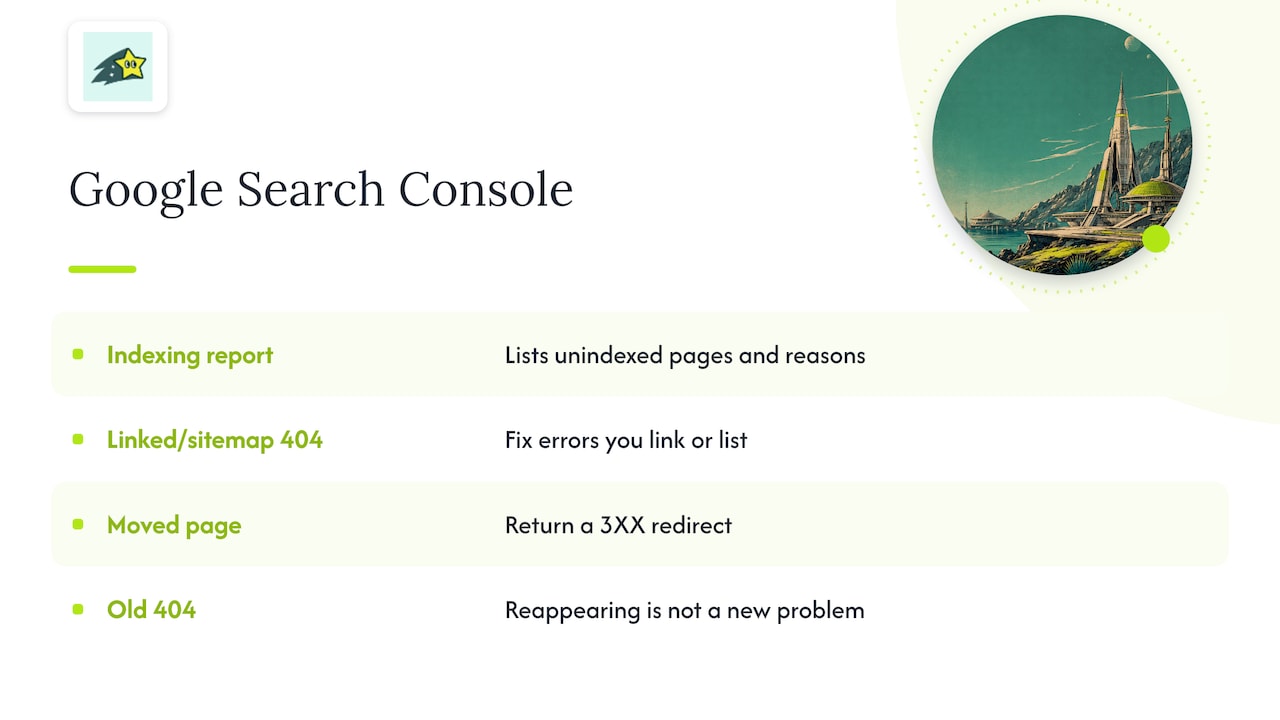
The Page indexing report lists pages that are not indexed and the reason, including "Not found (404)." Google's advice here is practical: fix 404 errors that you link to yourself or list in a sitemap, and return a 3XX redirect if a page has moved. The same help page explains that Google keeps crawling known URLs for a while after they return 4xx errors, in case the error is temporary, so an old 404 reappearing in the report is not a new problem.
If you are also wondering why some of your pages never show up at all, our guide on why your pages aren't indexed covers the other common reasons.
Web analytics
Analytics tells you what Search Console cannot: how many real people hit the error page, where they came from and what they were trying to reach. Most tools need one of two setups:
- Fire an event or goal from your 404 template, so every error view is counted.
- Filter page titles for something like "Page not found" and segment on that.
Whichever method you use, record the requested URL and the referrer. A 404 page view without those two fields tells you a problem exists but not how to fix it.
Crawlers
Run a crawl from your homepage and sitemap, filter responses for 404, and inspect the pages linking to each broken URL. Fix those source links directly. A crawl only covers URLs it discovers and can access; it will miss unlinked paths unless you supply them.
Server logs
Server and edge logs can record requests from bots and visitors who never ran your analytics script. Coverage depends on the logging layer, retention and sampling; origin logs may miss responses served by a CDN. Filter for status 404, group by URL and sort by count. This is where you spot a scanner hammering fake admin paths, or a legacy URL that an old email campaign still sends hundreds of people to.
Ongoing site monitoring
The sources above are snapshots. Monitoring makes the check continuous, so a template change on Tuesday does not become a traffic drop you notice three weeks later.
What a good 404 report captures
A list of broken URLs is not a report. To decide what to do, each row needs context. Capture these fields:
- Requested URL (the exact path, including query strings if they matter).
- Hits over a fixed period, such as the last 30 days.
- Referrer or source. Internal page, external site, search engine, email or direct.
- First seen and last seen. A URL that broke yesterday is a different problem from one that has errored for two years.
- Linked internally? Yes or no. If yes, the fix is in your own content.
- In the sitemap? If yes, remove it or restore the page.
- Revenue or conversions attached. Did visitors from this path ever buy?
- Suggested action. Restore, redirect, remove link or ignore.
Traffic, historical attributed revenue and campaign context can help prioritise repairs. They do not measure the exact revenue lost because of a broken page. Keep observed data separate from estimates and compare the same reporting period.
How to decide which 404s matter most
Run every error through the same short filter.
- Does the URL receive real traffic? Visitors from search, ads, email or social are people you are losing today.
- Does it have external links? These carry authority and referral visits you can recover with a redirect.
- Do you link to it yourself? Internal links to a dead page are always your fault and always worth fixing.
- Is it in your sitemap? A sitemap tells search engines the page should exist. A 404 there is a contradiction.
- Did it used to sell or rank? Check history before deciding it is junk.
- Is it random? Strings like
/wp-login-old.phpon a non-WordPress site, or typos nobody links to, can be ignored.
An illustrative example: a store with 40 product pages deletes 12 discontinued items during a catalog cleanup. The crawler finds no internal links to them, but analytics shows 9 of the 12 still receive visits from an old newsletter and from two review sites. Those nine are the priority. The other three have no traffic, no links and no sitemap entries, so they stay 404.
How to fix a 404: restore, redirect or leave it
There are three right answers, and the wrong move is applying one of them to everything.
Restore the page
If the page was removed by mistake, or still has strong demand and a reason to exist, bring it back at the same URL. This is the cleanest fix because nothing else has to change.
Redirect it
If content moved permanently or has a close replacement, use a 301 or 308 redirect to the most relevant destination. Use a temporary redirect only for a temporary move.
- Redirect a discontinued product to a close substitute or its category, not blindly to the homepage.
- Avoid redirect chains. Point the old URL directly at the final destination.
- Update your internal links and sitemap to the new URL so you are not relying on the redirect forever.
Be careful with pages that show an error message but return a normal 200 status. Google says soft 404 pages are excluded from Search, so a "not found" page must return a real 404 status code, not just look like one.
Leave it as a 404 or 410
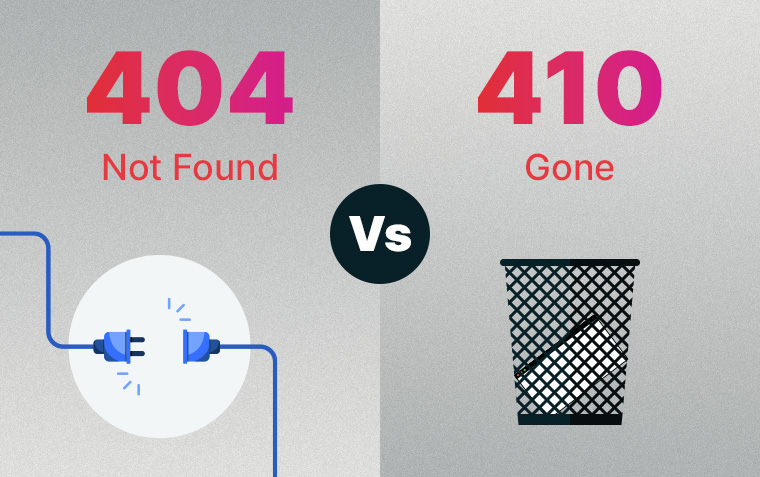
When a page is gone and nothing replaces it, let it stay gone. Google advises returning a 404 or 410 for removed pages with no replacement. A 410 is a slightly firmer signal of permanence, and either is acceptable. Redirecting unrelated pages to the homepage to "clean up" a report does not help visitors, and it can look like a soft 404.
Whatever you choose, make the error page itself useful. Add a search box, links to your main categories and a short, friendly message. Visitors who still land there then have somewhere to go.
Our perspective: treat 404s as a revenue question
Most 404 advice stops at "find broken links and fix them." That is correct, but it leaves owners with a long list and no way to rank it. We think the better question is: which of these errors cost us money?
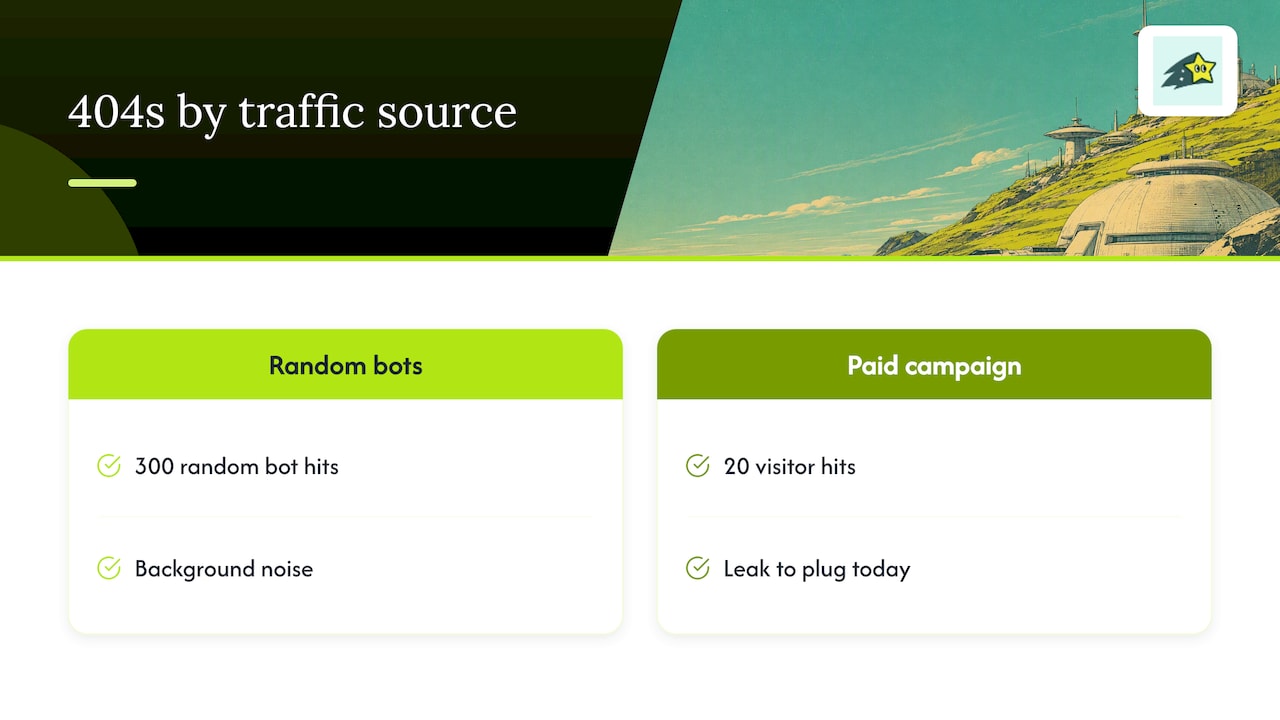
The answer depends on connecting three things that usually live in separate tools: the error, the traffic source behind it and the sales that source normally produces. A 404 hit 300 times by random bots is noise. A 404 hit 20 times by visitors from a paid campaign is a leak you can plug today.
Cromojo revenue analytics connects recorded activity with eligible Stripe and Shopify purchases. Matching depends on tracking and checkout setup; organic keyword revenue is estimated. Pair this context with website monitoring findings from enabled checks. Scan coverage, access and alert settings determine what is detected; this is not a complete log of every 404 request.
Our practical advice for a small team: set a monthly 404 review, keep it to 30 minutes, and only act on rows with traffic, links or revenue behind them. Everything else is background noise, and a calm approach beats chasing a perfect zero.
A simple monthly 404 routine
Here is a routine that fits into half an hour.
- Check Search Console. Open the Page indexing report and look for newly listed "Not found (404)" URLs. Note any that are in your sitemap.
- Review analytics. Look at the top error-page landing URLs and their referrers from the last 30 days.
- Crawl after changes. Run a crawl whenever you edit navigation, rename categories or remove products.
- Skim the logs. Sort 404s by count. Spot the top 10 and ignore obvious scanner noise.
- Triage. Apply the filter above, then mark each URL as restore, redirect or leave.
- Fix and record. Add redirects, update internal links, clean the sitemap and log what you changed.
- Re-check next month. Confirm that redirected URLs resolve correctly and that no new patterns have appeared.
After a migration or a large catalog change, do this weekly for the first month, because that is when most errors appear.
Where Cromojo fits
Cromojo brings web analytics and site monitoring into one workspace. Use its enabled checks alongside crawls and server logs, rather than assuming every broken URL is detected automatically. Cookie-free analytics is the default; optional returning-visitor tracking uses cookies and browser storage. Check current feature access and plans on the pricing page.